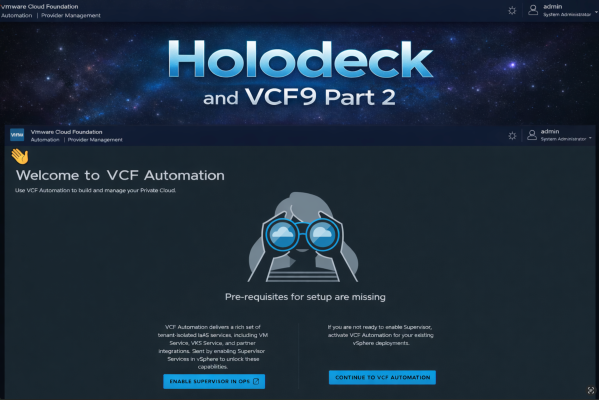
After trying a deploy like described in the previous post this was my config:
| |
I found out that a full deploy takes up too much resources on my physical host, because the automation vm consumes 1 nested host alone with 24 cores.
That is twice the amount of cores compared to the other 3 hosts, because the automation vm needs/demands it.
A full deploy is described here in this picture under VMware Cloud Foundation:
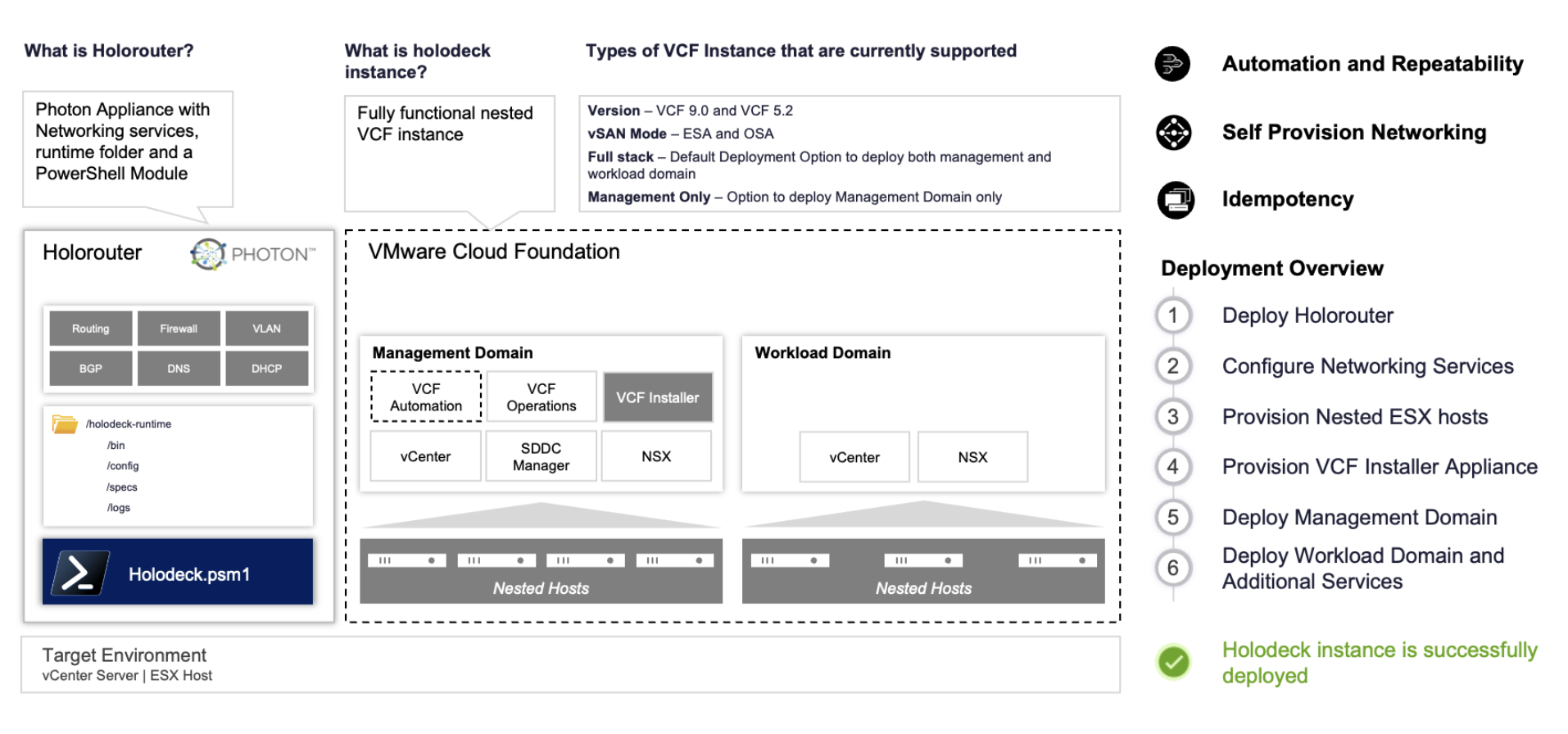
In my case the physical DELL host had 2 sockets,56 cores with a total of 67Ghz and the nested esxi with 1 automation vm used 31Ghz of that, BEFORE doing any setup or labstuff.
Full deploy also creates a workload cluster with its own NSX and vCenter as well as a Supervisor cluster, so my host where running at 100%+ cpu before i even logged in and tried anything.
I deleted the environment and started over. This time i only created a mgmt cluster and also had to remove the “deploySupervisor” setting. This is because it will not let you install it in a mgmt cluster, only when workload is defined.
But deploying it afterwards in the mgmt cluster from vCenter should be possible. (from a LAB perspective, not recommended in production.)
So i ran the config again:
| |
This will give you a config ID:
| |
New-HolodeckInstance command options:
New-HoloDeckInstance -Version
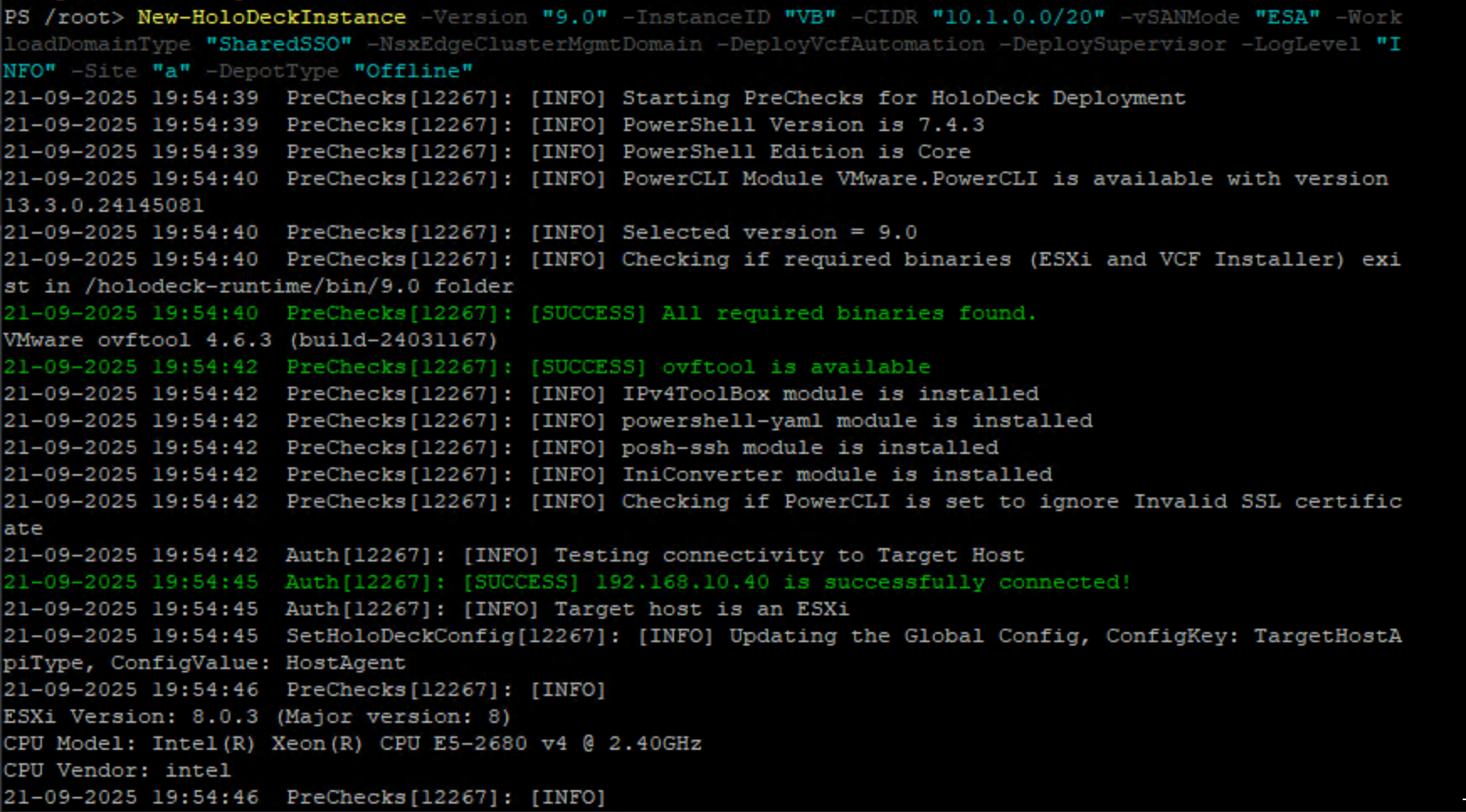
My new version was:
| |
This only installs VCF Mgmt cluster (4 nodes) with a NSX Edgecluster and also deploys VCF Automation. You can then deploy a workload cluster after you have the Mgmt cluster up and running.
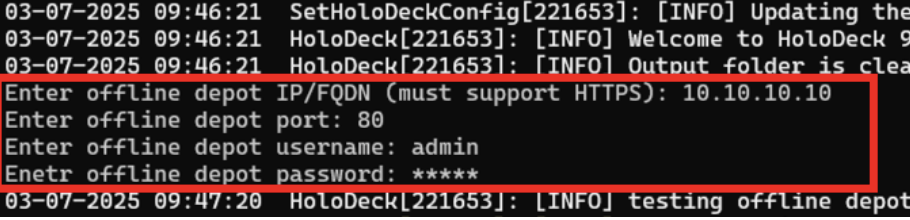
After the script is started it needs a few inputs:
the disk for HoloDeck
The Network
The token from broadcom support
The info for the offline depot VM
The script starts prepping the hosts, then the VCF installer.
After this it checks the Depot and downloads files if needed.
When this is ready you can open the desktop in browser: holorouterip:30000 and add 10.1.10.250 in firefox inside the vnc where you can follow the rest of the install process.
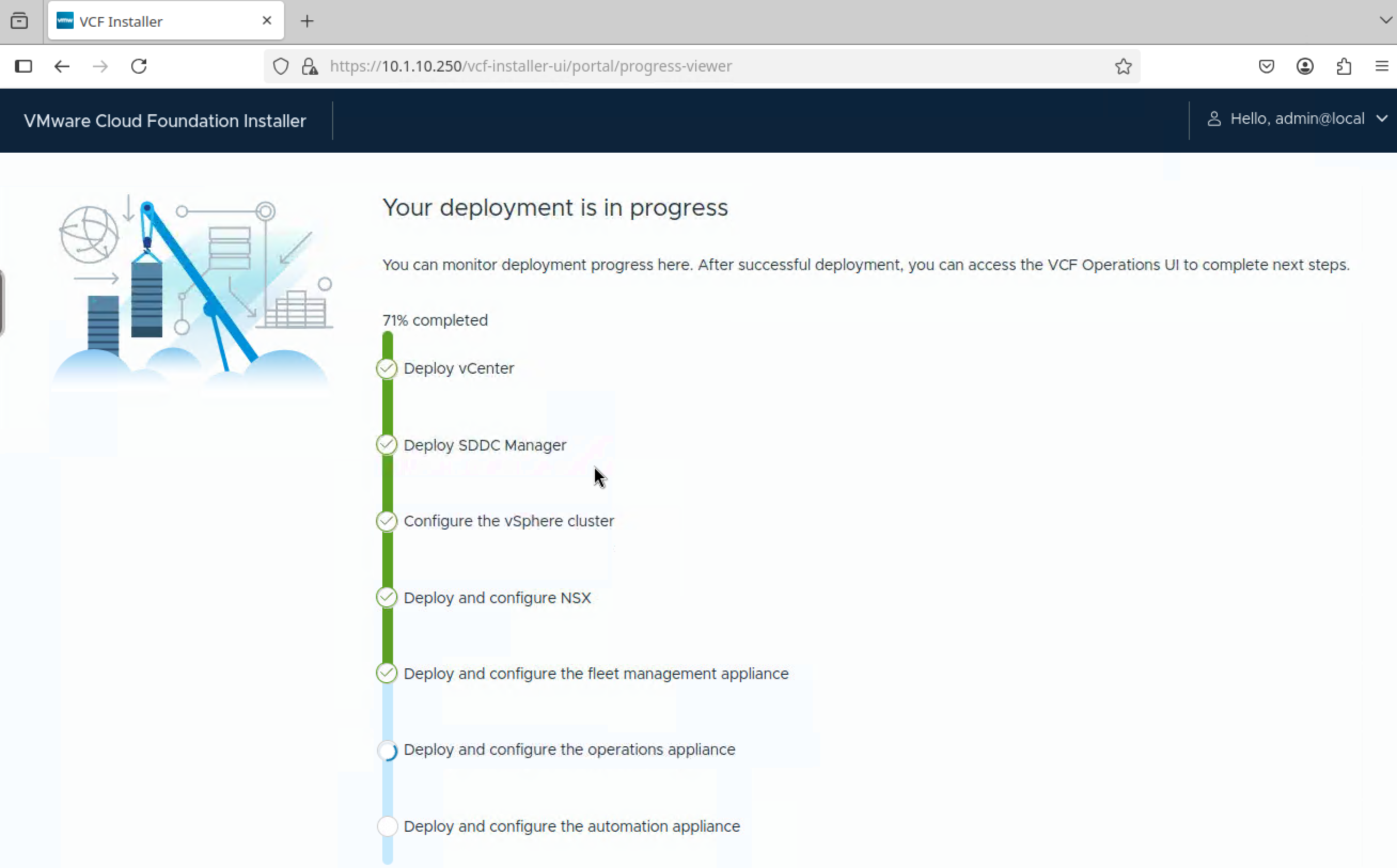
In my case it deployed successfully (again) ,and i had a fully working VCF9 lab to play around with.
But……
Webtop/VNC is not very fast, and really annoying that you get latency when trying to click around in Operations or SDDC manager.
So, i looked around for a better alternative.
How could i access the Holodeck environment with all of its vlans without exposing them to the outside world, and still get good performance in the UI?
I think i found it, and it was SSH Socks proxy.
The way it works is that you connect from your mgmt vm via SSH port forwarding to the holorouter and into the Holodeck environment.
First step, i had to open (admin)powershell and run:
| |
What does the flags mean?
-D 1080 -> starts SOCKS5-proxy on local port 1080
-N -> no shell ( tunnel only)
user@host -> Holorouter
| |
Leave the terminal open, it is now the “entrance gate” to the isolated environment.
In my case it failed for several reasons, and this is how i fixed it.
I have 2 ip`s configured in my mgmt vm so i also changed the metric on the interfaces to be sure the vm prioritized the traffic between the mgmt vm and the holorouter.
Here it failed because i had not changed ssh config yet.
| |
If it fails, you need to verify ssh.
| |
The holorouter is a Photon VM, not configured for this ssh config, so you need to edit your sshd_config. ( maybe iptables as well if ssh is stopped after a reboot)
IPtables: run this in your holorouter as root.
| |
what it does?
- iptables -P INPUT ACCEPT
Sets default policy INPUT to ACCEPT
- iptables -F INPUT
removes all existing INPUT-rules
Result:
Prove that no input gets blocked by iptables in the photon vm.
Now using VI to edit SSHD_CONFIG on the Holorouter:
| |
Here you need to add/change these values:
| |
if you want to do it the right way and more secure, also add:
| |
This allows forwarding to your mgmt vm only, and makes it more secure.
esc, wq! to end the VI session, and you are done with the sshd_config.
Then do a restart of sshd
| |
This change would also be a good idea if you have more than one holodeck host, just create a small mgmt vm for each holodeck, and set it up with socks proxy and its own mgmt vm address, specific for that Holo-environment.
If you now try again with:
| |
no errors
no output
command “hangs” -> its a success
You can verify the port with:
| |
Why this happens:
Photon OS / appliance-images has often:
AllowTcpForwarding no as default
Match blocking specially for root
Security measures
When this works you have:
Ping
TCP 22
SSH login
Socks Proxy
DNS via SOCKS
And you dont need webtop👍
Next step is installing Firefox in your mgmt vm and configuring the proxy.
Go to firefox settings and network:
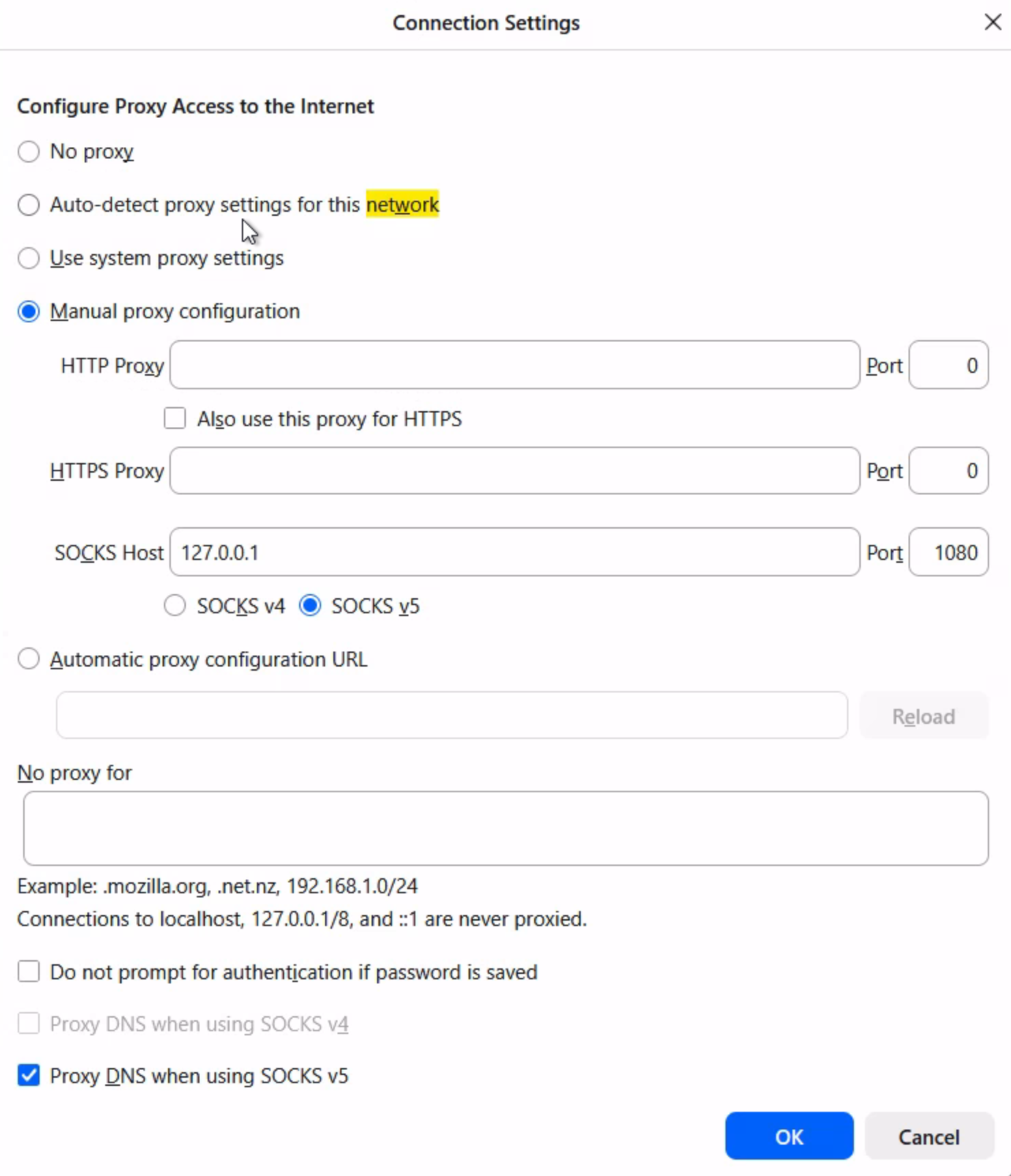
Set the socks host to 127.0.0.1 and the desired port, in this case 1080.
Check also the Proxy DNS socks v5
You should then be able to start a firefox tab and add one of these adresses:
| |
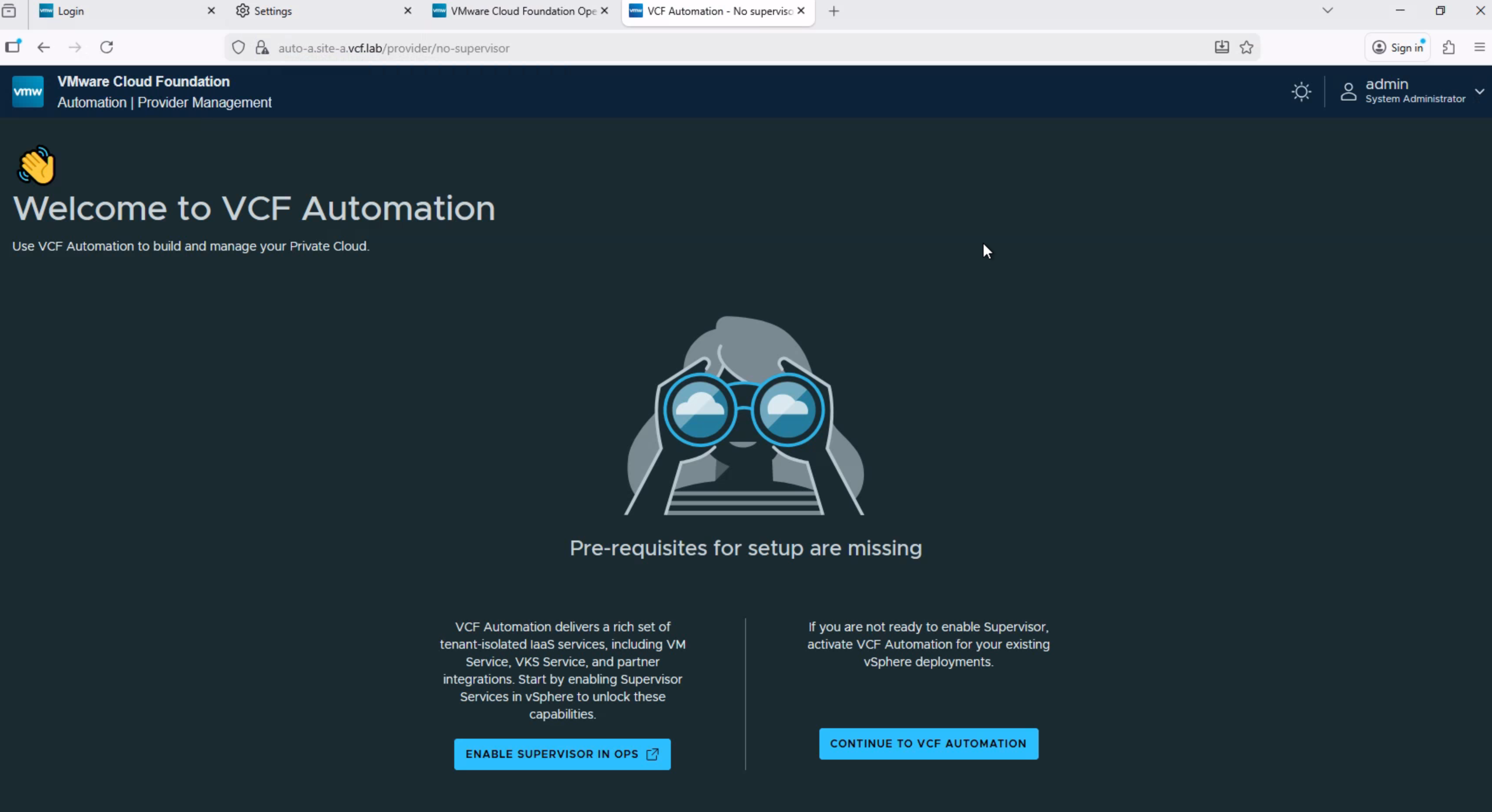
This should resolve FQDN`s perfectly from your mgmt vm outside the nested Holodeck environment. (with your socks proxy firefox only).
Stopping the powershell terminal running the tunnel stops the connection.
There are probably more than one way to fix this, ssh socks proxy worked for me, webtop not so much.
So now i fixed the remote control performance, but still was using about 85-95% cpu in my host.
One way i might fix that can be to extend the Holo-network / portgroups to a secondary host with direct connect cables, in this case , 10GB DAC cables.
This way i can move my automation vm to a secondary host and use primary host for mgmt and Supervisor/Tanzu.
More about that in my next post.