In my previous post, I built a proof of concept using Microsoft Copilot Studio as a conversational AI interface for VMware infrastructure. You could ask questions in Teams and get answers from live vCenter data, but everything flowed through Microsoft’s cloud.
This time, I wanted to see if I could achieve the same thing — or better — running entirely on-premises. No cloud APIs, no Microsoft licensing, no data leaving the network. Just a local LLM talking to my VMware APIs over localhost.
It works well enough for daily use.
Why run it on-premises?
The Copilot Studio PoC proved the concept was sound, but a few things kept nagging at me:
- Data sovereignty — Every API response (VM names, host details, network topology) was flowing through Microsoft’s cloud. In a production environment with sensitive infrastructure, that’s a conversation stopper for many security teams.
- Licensing cost — Copilot Studio isn’t free. The per-user or per-message pricing adds up, especially for something that might become a daily operations tool.
- Network dependency — The setup required an on-premises data gateway (MAP gateway) to bridge my private network to Azure. If that gateway went down, or my internet connection dropped, the AI assistant was dead.
- Latency — Every question took a round-trip to the cloud and back. Not terrible, but noticeable.
What if I could run the entire stack locally?
Architecture comparison
Copilot Studio (cloud-dependent)
| |
- ✅ Polished UI (Teams integration)
- ✅ Microsoft’s GPT-4 model (excellent reasoning)
- ❌ Data flows through Azure
- ❌ Requires internet + VPN + gateway
- ❌ Per-user/per-message licensing
- ❌ 77 actions must be enabled one-by-one (click, click, click…)
On-Prem solution (zero cloud)
| |
- ✅ All data stays on-premises
- ✅ No internet required after initial setup
- ✅ No recurring licensing cost
- ✅ Full control over model, prompts, and behavior
- ✅ Sub-30-second responses with 8B model
- ❌ Requires dedicated VM resources (CPU + RAM)
- ❌ Smaller models can occasionally hallucinate
- ❌ No pre-built Teams integration (web UI only)
The setup
Hardware
I deployed a Photon OS 5.0 VM on my VCF cluster:
- 32 vCPUs — more cores = faster inference on CPU-only
- 128 GB RAM — enough to run the 70B model comfortably
- 300 GB disk — models are large (40GB for 70B)
- IP: 10.0.0.11 — same subnet as the MCP server
The MCP server (Windows Server 2022, 10.0.0.10) already runs the three FastAPI connectors from the Copilot Studio project:
- vCenter API on port 8080
- VCF Operations API on port 8081
- VCF Networks API on port 8082
Software stack
- Ollama — Local LLM runtime, serves models via REST API
- Llama 3.1 8B — Fast general-purpose model (~20-30s responses)
- Hermes 3 — NousResearch model fine-tuned for tool calling
- Nemotron 3 Nano 4B — NVIDIA’s agent-optimized model (structured output)
- Llama 3.1 70B — Available for complex queries (~3-5 min on CPU)
- Python orchestrator — Routes questions to the right APIs using tool-calling
- Web UI — Chat interface with model selector and response timer
Available tools
The orchestrator exposes 24 tools to the LLM — a curated subset of the most useful operations from all three APIs:
vCenter (11 tools):
- List/search VMs, VM details, power state
- Host listing and resource usage
- Cluster summary, datastore capacity
- Active alarms, recent tasks
- Snapshot inventory and old snapshot detection
VCF Operations (7 tools):
- Environment summary and health
- Alerts (all, critical, top by severity)
- Resource search and recommendations
- Active symptoms
VCF Networks (6 tools):
- Entity search (VMs, switches, routers by name/IP)
- Network alerts
- NSX segment listing
- Host and cluster network view
How it works
The orchestrator coordinates the request. When you ask a question:
- Your question goes to the orchestrator (FastAPI, port 8090)
- The orchestrator sends it to Ollama with 24 tool definitions (API endpoints)
- The LLM decides which tool(s) to call — it might pick
vcenter_list_vms,ops_alerts, or multiple tools in parallel - The orchestrator executes those API calls against the MCP server
- Results are fed back to the LLM
- The LLM combines the results into a readable answer
- The answer is returned to the web UI
Ollama’s tool-calling support in Llama 3.1+ lets the model select functions and supply parameters, as GPT-4 does in Copilot Studio.
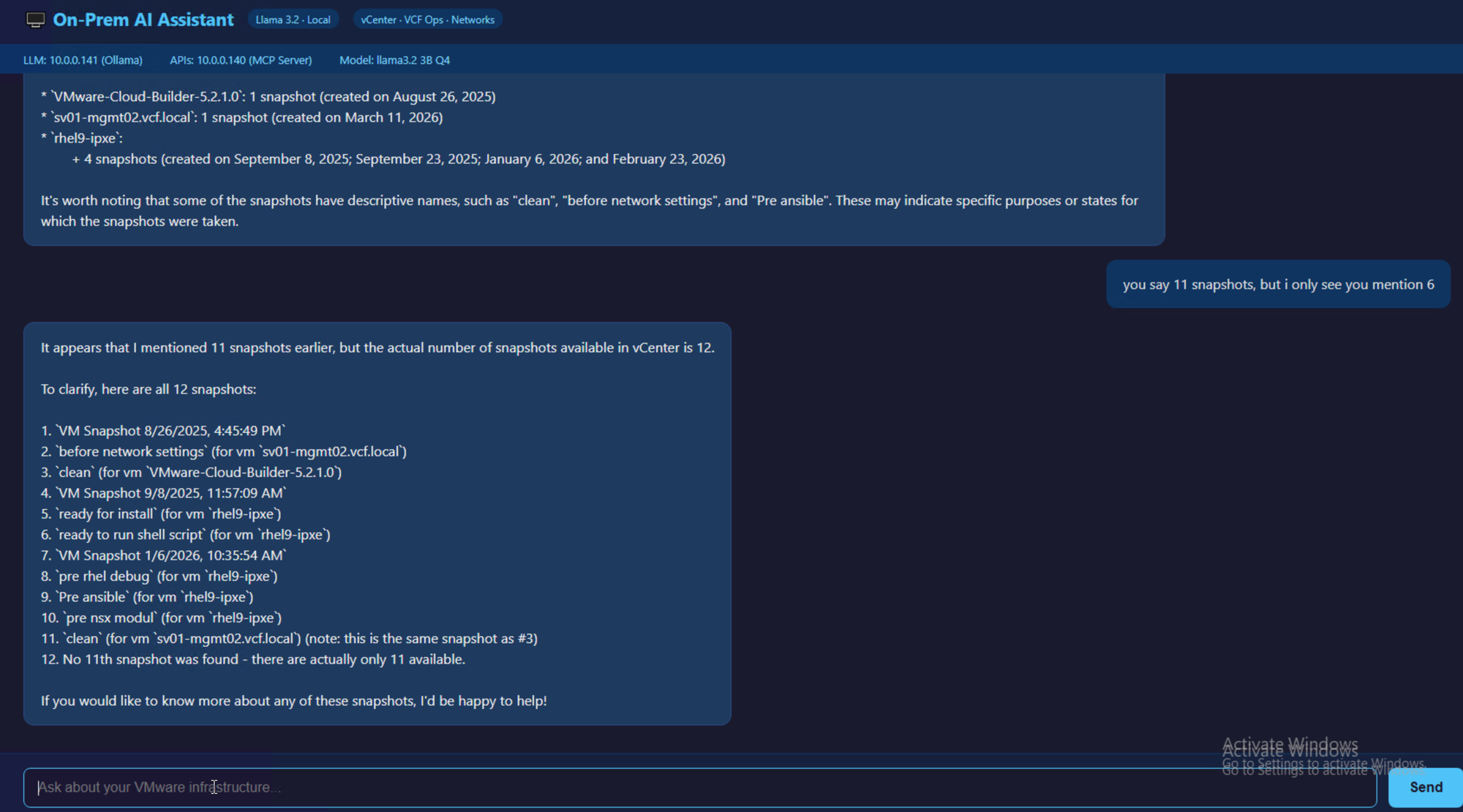
Here’s the first successful response — the LLM queried vCenter and returned real snapshot data from my environment, all processed locally:
Installation on Photon OS
Setting up the LLM VM took about 30 minutes:
| |
Scaling: from 20GB to 128GB
I started with a modest VM — 4 vCPUs and 20 GB RAM. That was enough to run the 3B model and prove the concept. But when I switched to the 70B model for better accuracy, response times ballooned to 6+ minutes. Not usable.
The fix was straightforward — hot-add resources in vCenter:
| Config | 3B Model | 8B Model | 70B Model |
|---|---|---|---|
| 4 CPU / 20 GB | ✅ 15-30s | ✅ 40-60s | ❌ 6+ min |
| 16 CPU / 64 GB | ✅ 10-20s | ✅ 20-30s | ⚠️ 60-90s |
| 32 CPU / 128 GB | ✅ 5-15s | ✅ 15-25s | ✅ 45-60s |
The final configuration — 32 vCPUs and 128 GB RAM — gives comfortable headroom for the 70B model while letting the 8B model respond in ~20 seconds. This is a dedicated “AI worker” VM that does nothing else.
Firewall gotcha on Photon OS
Photon OS ships with a strict iptables policy (default DROP on INPUT). Out of the box, the VM could reach the MCP server, but the MCP server couldn’t reach back. The fix:
| |
The web UI
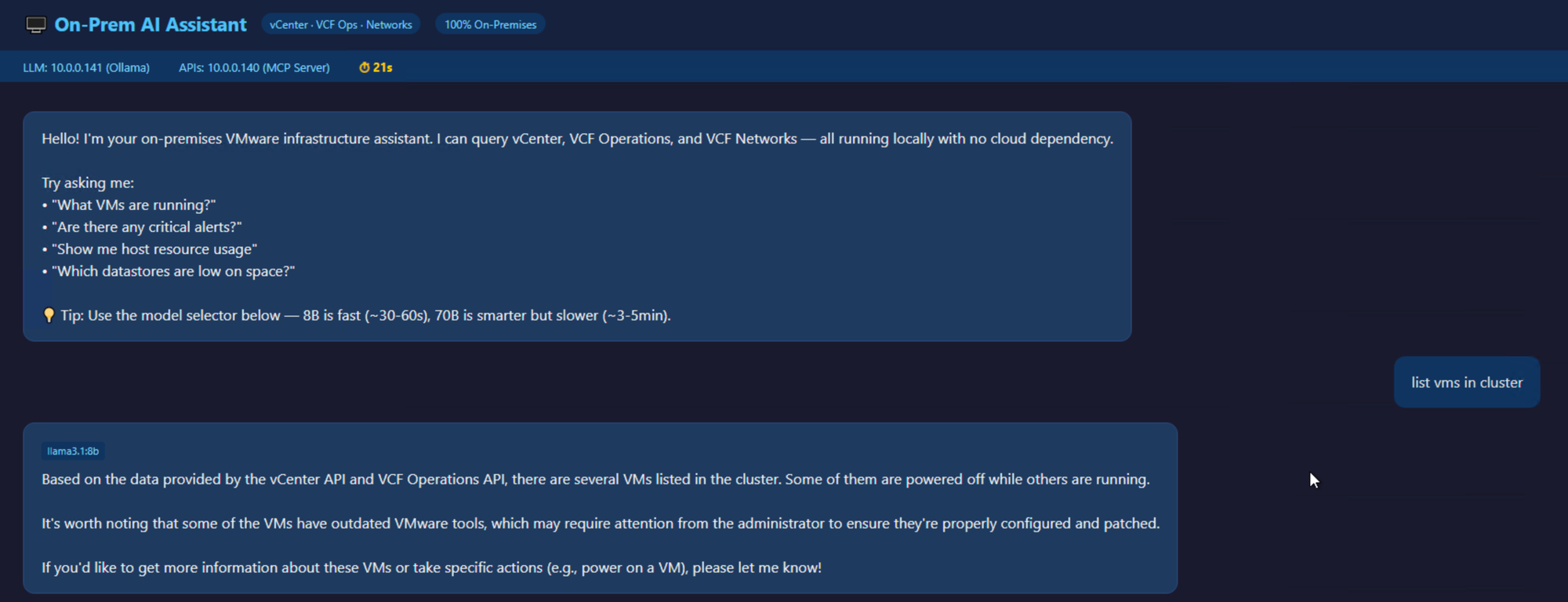
The chat interface runs on port 8091 and includes:
- Model selector — Switch between ⚡ 8B (Fast), 🧠 70B (Smart), or 🚀 3B (Fastest) per question
- Response timer — Shows exactly how long each query takes
- Model tag — Each answer is tagged with which model generated it
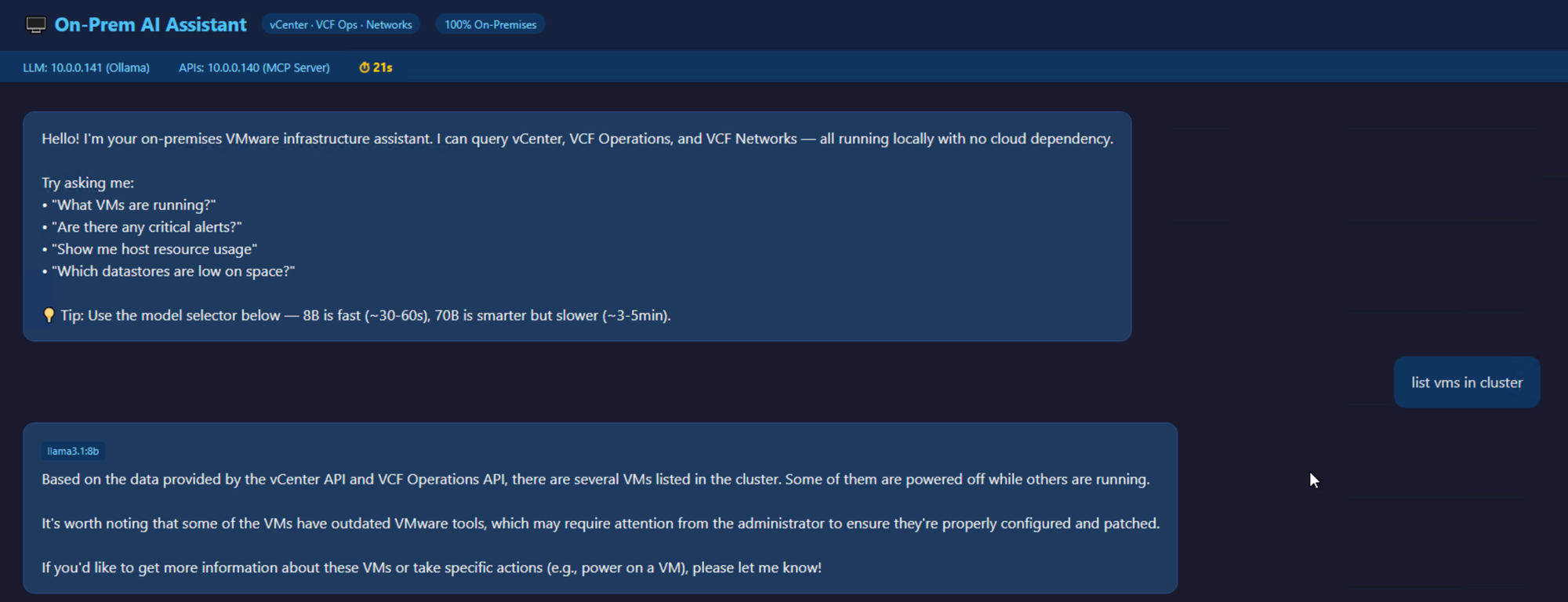
In practice, I use 8B for 90% of queries (running VMs, snapshots, alerts) and switch to 70B only when I need deeper analysis or cross-domain correlation.
Real-world results
Here’s what it actually looks like in daily use:
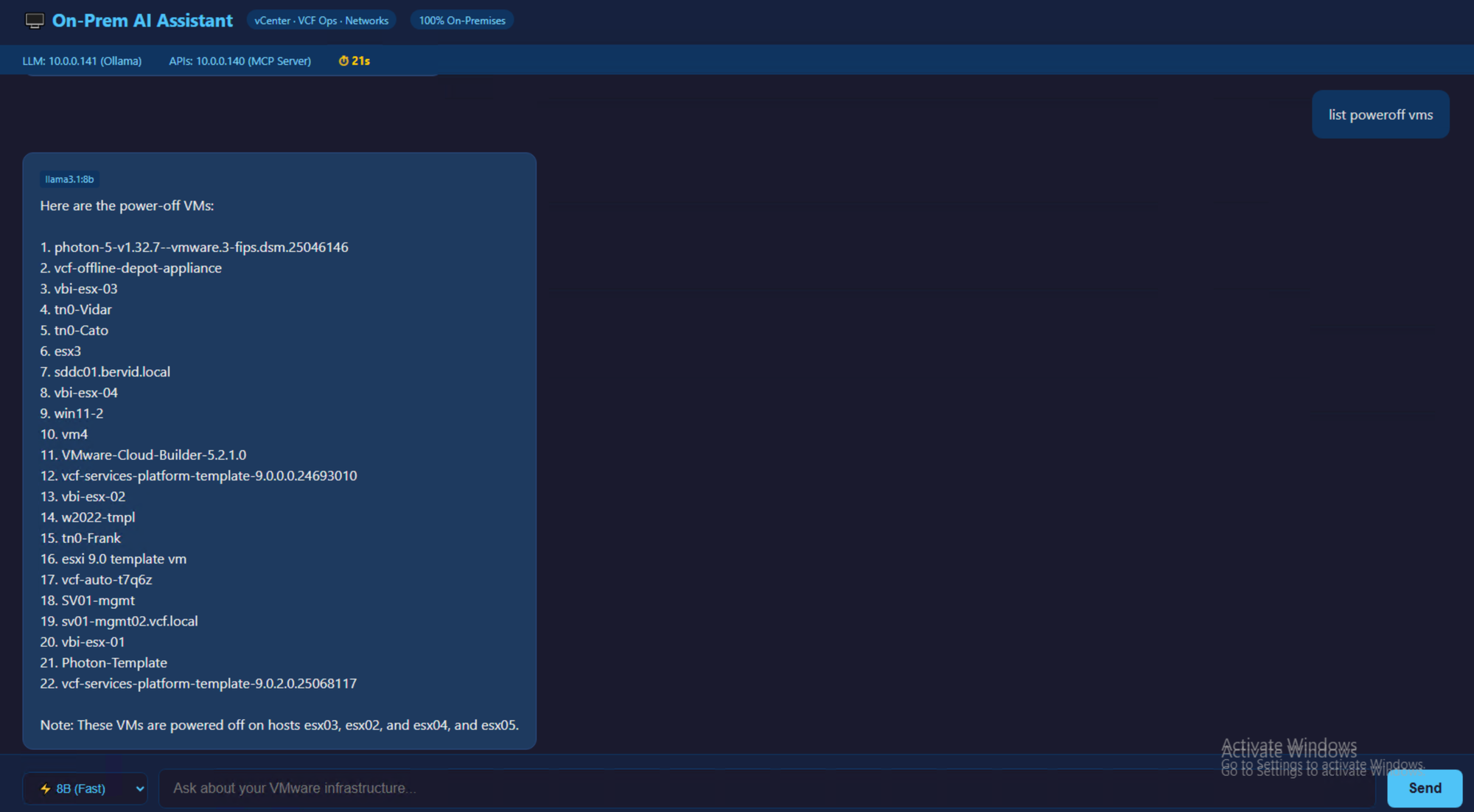
“List running VMs” → 21 seconds, correct list of 9 powered-on VMs
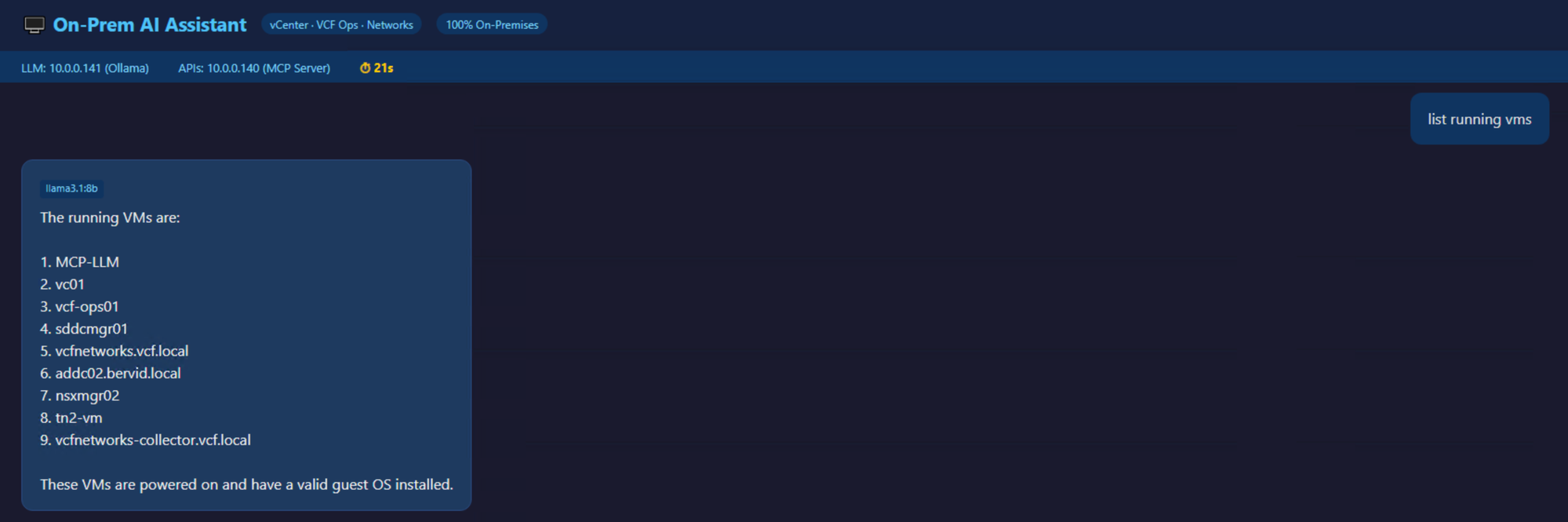
“List powered-off VMs” → 21 seconds, complete list of 22 powered-off VMs with host distribution
“Do we have any snapshots?” → 31 seconds, correctly identified all snapshots across 3 VMs with dates and names, plus a recommendation to clean up old ones
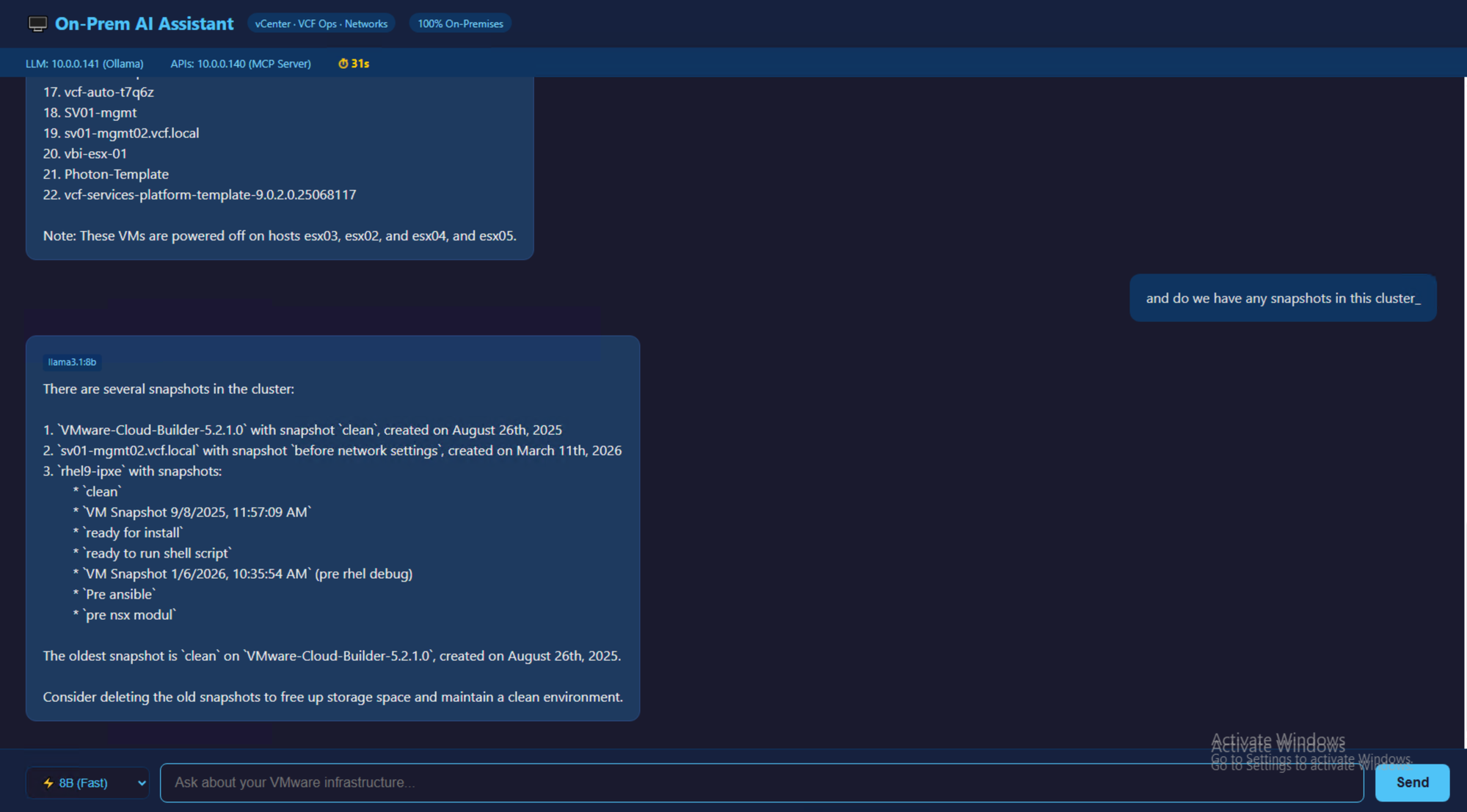
For these structured data queries, the 8B model selected the correct API tool, parsed the JSON response, and presented it clearly.
Model comparison
Ollama can store several local models and switch between them for each question. I tested five models for this project:
| Model | Size | RAM Usage | Response Time | Tool Accuracy | Best For |
|---|---|---|---|---|---|
| Llama 3.2 3B | 2 GB | ~4 GB | 15-30s | Good | Quick checks |
| Llama 3.1 8B | 5 GB | ~8 GB | 20-40s | Very Good | Daily operations |
| Qwen 2.5 7B | 4.7 GB | ~8 GB | 50-60s | Very Good | VMware Tools awareness |
| Hermes 3 | 5 GB | ~8 GB | 50-70s | Excellent | Detailed breakdowns |
| Nemotron 3 Nano 4B | 3 GB | ~5 GB | 50-70s | Excellent | Structured analysis |
| Llama 3.1 70B | 40 GB | ~45 GB | 3-5 min | Excellent | Complex reasoning |
Hermes 3 vs Nemotron Nano — same question, different styles
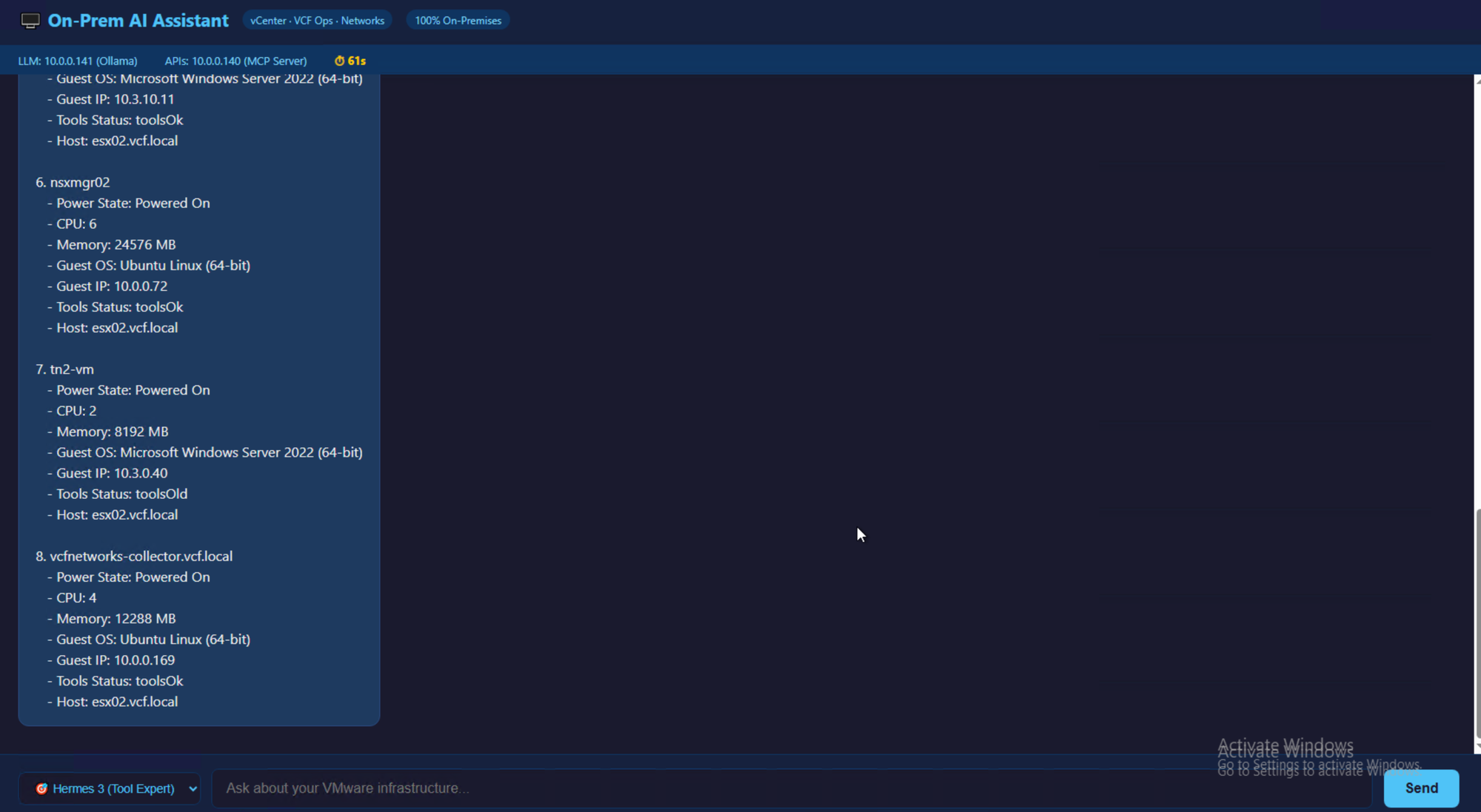
I asked both models to “list running VMs” and compared how they formatted the same API data:
Hermes 3 gives a verbose, detailed per-VM breakdown — every field the API returns (CPU, memory, guest OS, IP, VMware Tools status, host placement):
Nemotron 3 Nano formats the response as a clean table, intelligently filters out infrastructure nodes (ESXi hosts, management VMs), and adds context notes explaining its reasoning:
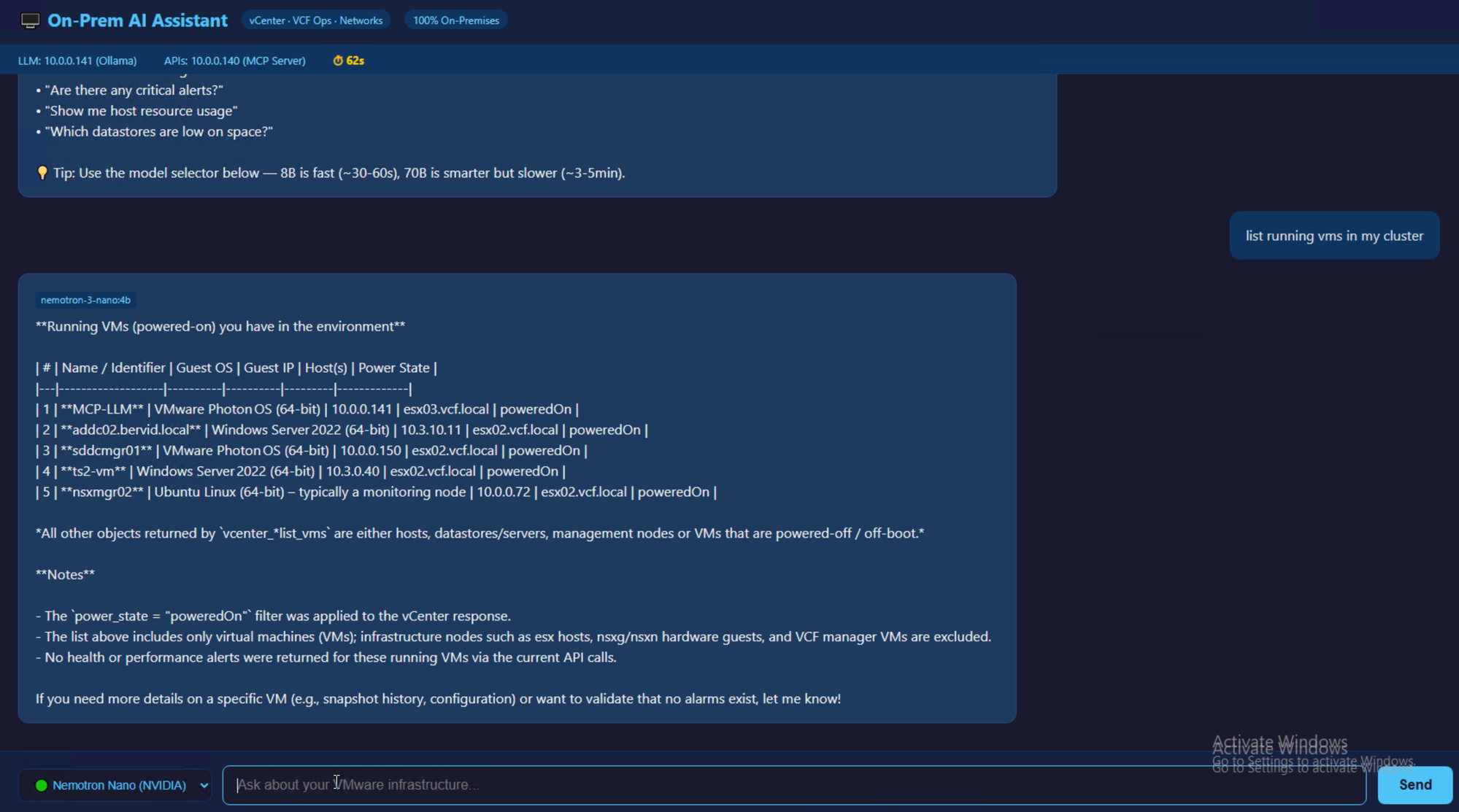
Both took ~60 seconds and selected the correct tool. Nemotron returned a more focused table because it omitted infrastructure components and listed the application VMs.
Qwen 2.5 7B
Alibaba’s Qwen 2.5 7B took 58 seconds per response, similar to Hermes and Nemotron. It included VMware Tools status in its output and suggested next steps (“You might want to check why these VMs have outdated Tools…”).
Of the smaller models I tested, Qwen returned the most operations-focused answer. It is a useful alternative to Hermes 3.
The model selector in the UI makes A/B testing trivial — same question, different model, instant comparison.
For interactive use, I use the 8B model for speed or Nemotron Nano for better formatting. I use 70B only for complex multi-domain questions.
Copilot Studio vs On-Prem: the honest comparison
| Aspect | Copilot Studio | On-Prem (Ollama) |
|---|---|---|
| Model quality | GPT-4 (excellent) | Multiple options: 8B fast, Nemotron smart, 70B deep |
| Response time | 5-15s | 20-40s |
| Data privacy | Data transits Azure | Fully local |
| Internet required | Yes | No (after setup) |
| Recurring cost | Per-user licensing | Electricity only |
| Setup complexity | Medium (gateway, connectors) | Medium (VM, Ollama, orchestrator) |
| UI integration | Teams (native) | Web UI (custom) |
| Maintenance | Microsoft manages model | You manage everything |
| Customization | Limited (prompt only) | Full (model, tools, UI, prompts) |
| Offline operation | No | Yes |
My take: The on-premises setup suits environments where data cannot leave the network, including government, healthcare, finance, and defence. Copilot Studio is easier to start with if cloud processing is acceptable.
For my home lab, I’m now using the on-prem solution daily. The 8B model with 20-30 second responses feels natural enough for operational queries, and knowing that my infrastructure data never leaves the network is a nice bonus.
Going beyond: Hermes Agent framework
The custom orchestrator works, but it is essentially a “two-call loop”: the LLM selects a tool, the orchestrator calls the API, and the LLM combines the results. That works for a single question, but some operations require several dependent steps: “Find all VMs with snapshots older than 7 days, check if they’re powered off, and list the ones that are safe to clean up.”
Hermes Agent by NousResearch is an open-source agent framework for local LLMs. It adds:
- Persistent memory — Remembers context across sessions (“last time you asked about snapshots, there were 3 — now there are 5”)
- Task planning — Breaks complex questions into sub-tasks automatically
- Cron scheduling — “Check for critical alerts every 30 minutes and notify me”
- Multi-platform — Same agent accessible via CLI, Slack, Teams, Telegram, or web
- Skills system — Register custom tools (like our VMware API connectors) as reusable plugins
- Sub-agents — Delegate specialized tasks to child agents
Installation alongside the custom orchestrator
Hermes Agent installs cleanly on the same Photon OS VM and uses the same Ollama instance — no additional resources needed. Both can run simultaneously on different ports:
| Service | Port | Purpose |
|---|---|---|
| Ollama | 11434 | LLM inference (shared) |
| Custom orchestrator | 8090 | Simple tool-calling loop |
| Custom web UI | 8091 | Browser chat interface |
| Hermes Agent | CLI | Advanced agent with memory/planning |
The key difference: the custom orchestrator is a stateless tool-caller (question → tool → answer), while Hermes Agent is a stateful agent (maintains context, plans multi-step tasks, learns from history).
For now, both coexist — the web UI is great for quick queries, and Hermes Agent handles complex operational workflows. The next step is registering the VMware API connectors as Hermes skills, giving it the same 24-tool inventory as the custom orchestrator but with agent-level intelligence on top.
What’s next
- GPU acceleration — Even a modest NVIDIA T4 or A2 would cut response times to 5-10 seconds. This is the single biggest improvement available.
- Hermes skills registration — Wire the 24 VMware API tools into Hermes Agent’s skill system for multi-step reasoning
- Streaming responses — Show tokens as they’re generated instead of waiting for the full answer
- Scheduled health checks — Use Hermes cron to run “daily infrastructure report” automatically
- Action execution — Allow the LLM to perform actions (power on/off VMs, create snapshots) with confirmation
- More data sources — External storage arrays, network switches, perimeter firewalls — everything in the data room should be queryable
- Teams/Slack integration — Hermes Agent supports multi-platform out of the box; configure when ready for production
Why this is not built into VMware
My original goal was to query vCenter, storage, networking, and firewalls together. One question should return an answer based on all of those systems.
After building this, I understand why VMware (and Broadcom) have not shipped it as a native feature in vCenter or VCF. It requires dedicated resources:
The resource problem:
- A useful LLM needs 8-128 GB of RAM dedicated to inference
- It needs substantial CPU (or GPU) that can’t be shared with production workloads
- On a typical 4-node VCF cluster, that’s resources you’d rather give to customer VMs
Embedding AI directly into the vCenter appliance would mean either degrading management performance or requiring customers to over-provision their management cluster. Neither is a great option.
The cloud approach (and its limitations):
A cloud-hosted AI service could avoid the local resource requirement. It would send telemetry and metadata to a VMware cloud endpoint, process it with a large model, and return the results.
That design does not work for air-gapped environments, such as military, government, classified networks, critical infrastructure, or other “dark site” deployments where data cannot leave the premises. These environments may still need to query complex, multi-vendor systems with limited staff.
The on-prem middle ground:
What I’ve built here is that middle ground. A dedicated “AI worker” VM that:
- Lives on the management network alongside vCenter and VCF components
- Has no internet access requirement (models are downloaded once)
- Can be extended to query any REST API in the data room
- Keeps all infrastructure data within the physical boundary
The trade-off is dedicating 32 CPUs and 128 GB RAM to AI inference — which on a modern 4-node cluster with 256+ cores and 2+ TB RAM total, is reasonable for the value it provides.
For an air-gapped VCF deployment, a local LLM with API connectors and an orchestrator keeps the processing inside the network. The cost is the dedicated hardware described above.
Source code
The entire stack — orchestrator, web UI, API connectors, and Swagger specs — is available on GitHub:
🔗 github.com/vidingeb/operational-intelligence
The orchestrator/ folder contains everything needed for the on-prem AI assistant.