The easy installer is complete, but the integration still needs a few steps.
This post connects Orchestrator to vCenter and makes an Orchestrator workflow available in vRA Service Broker.
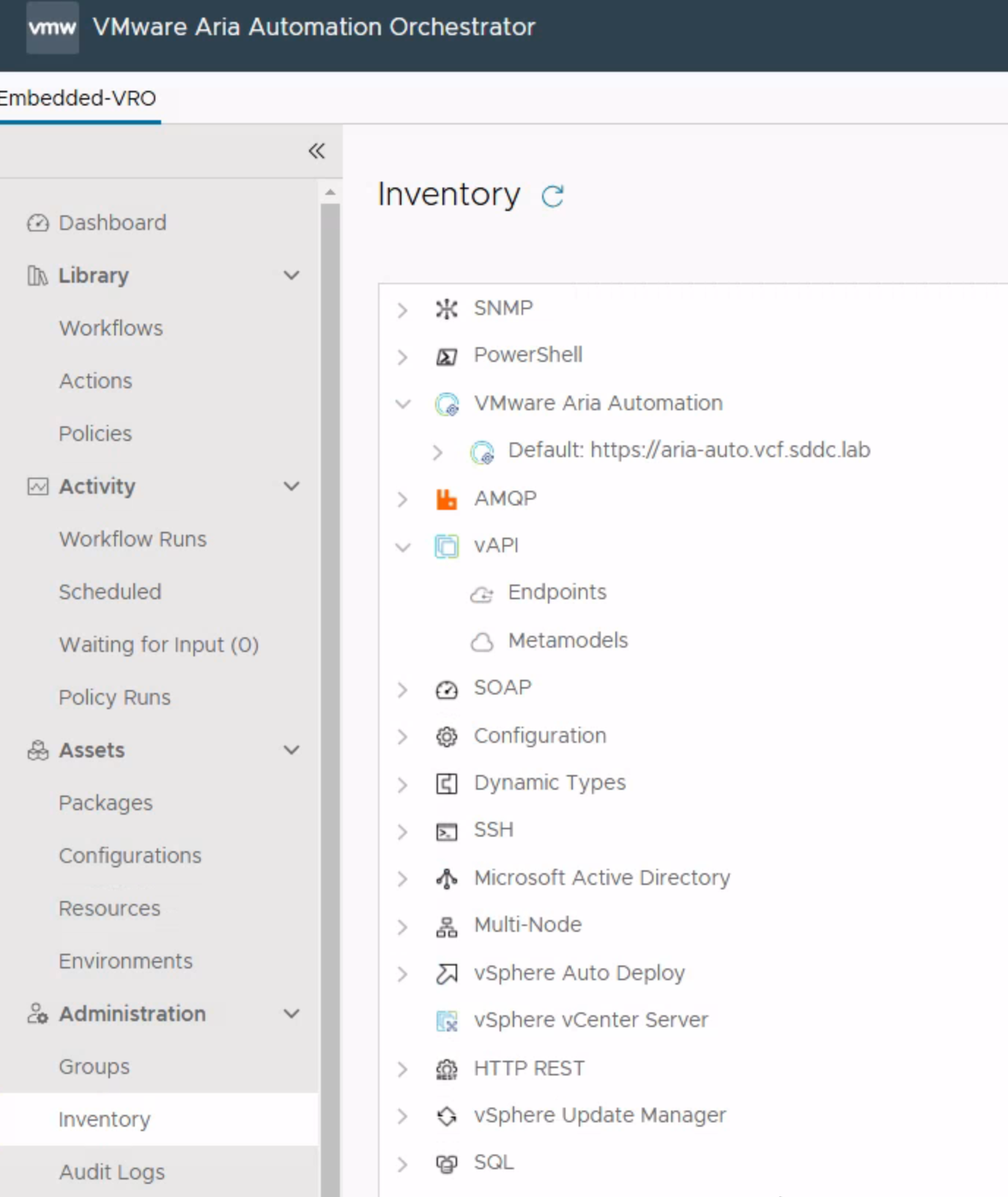
Check your inventory, and verify vAPI and vSphere vCenter Server.
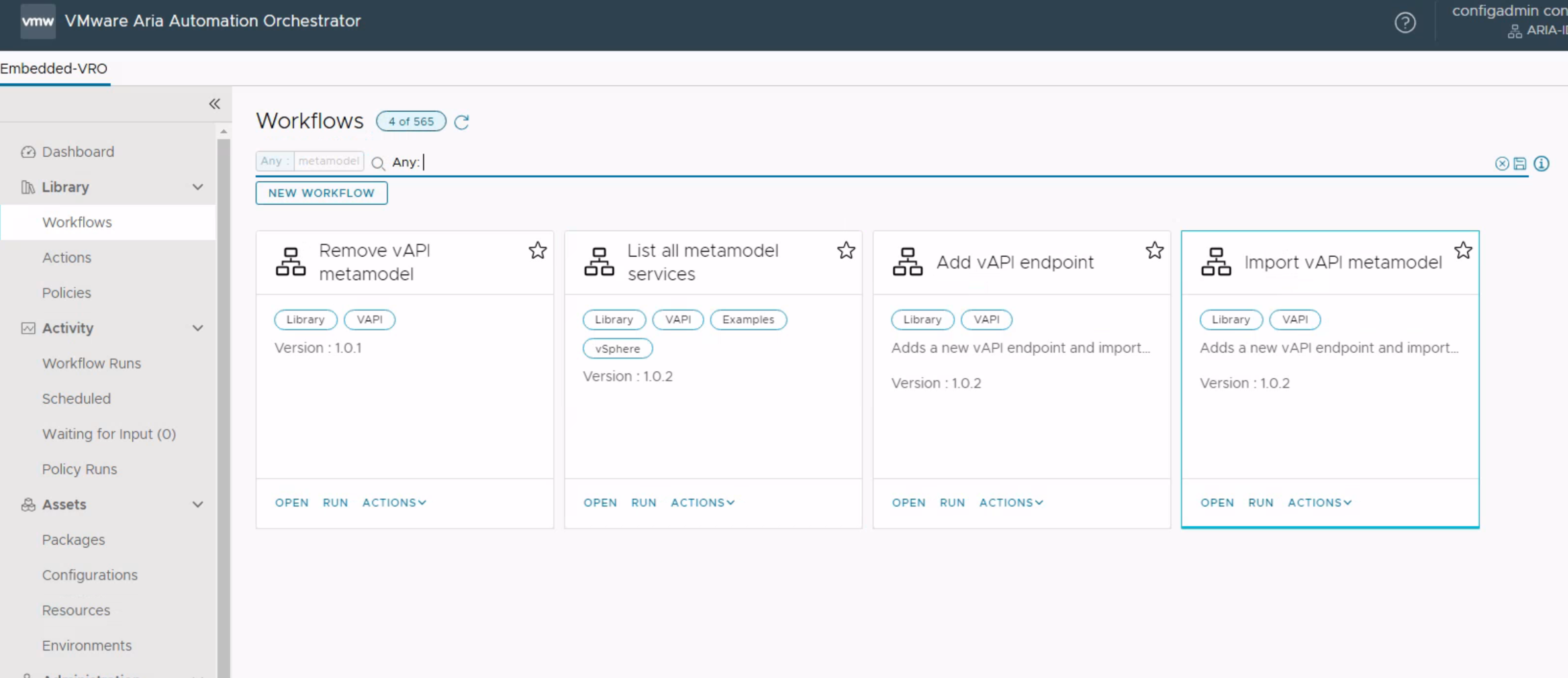
I start with vAPI. Go to workflows and search for metamodel.
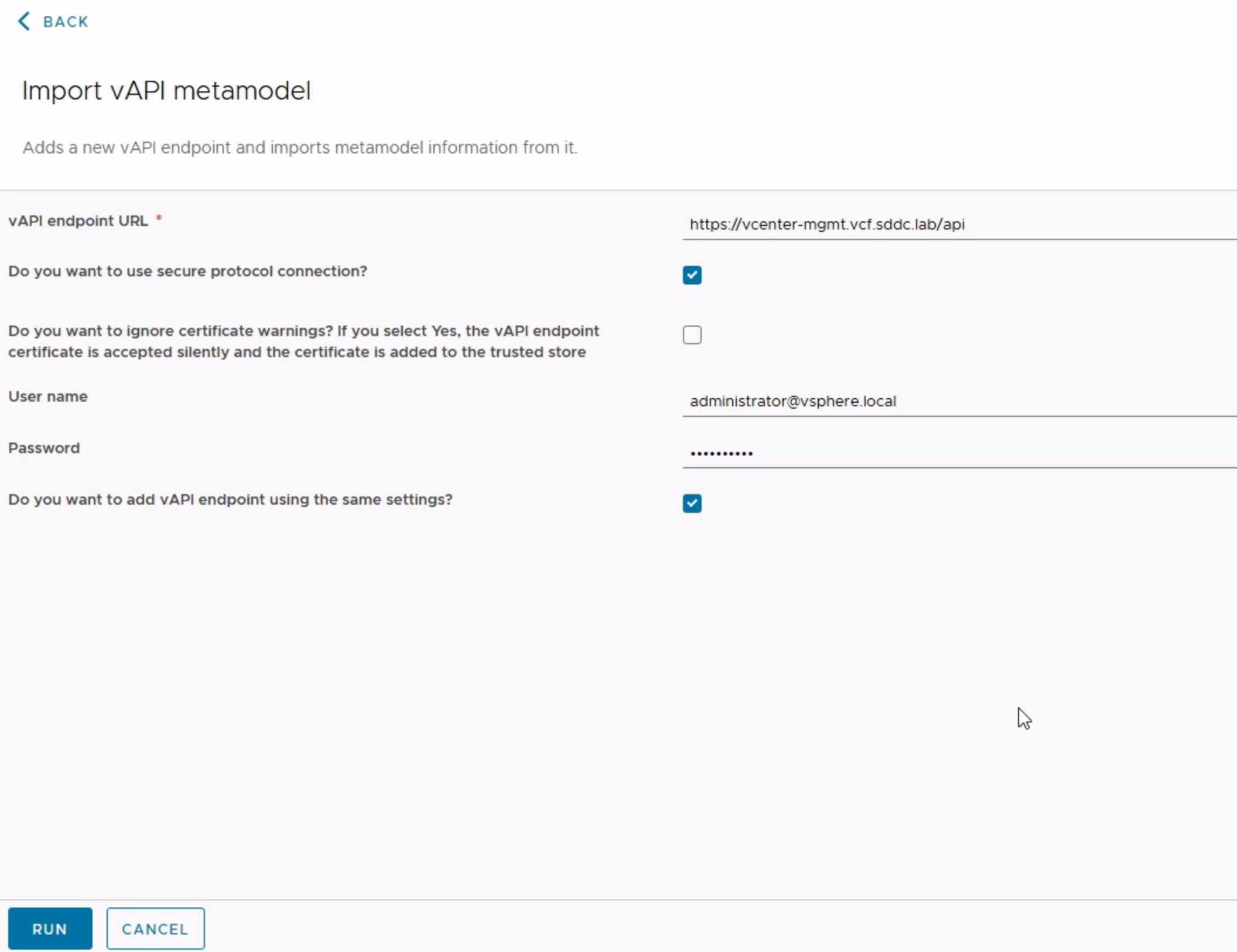
Run Import vAPI metamodel. This also adds the endpoint.
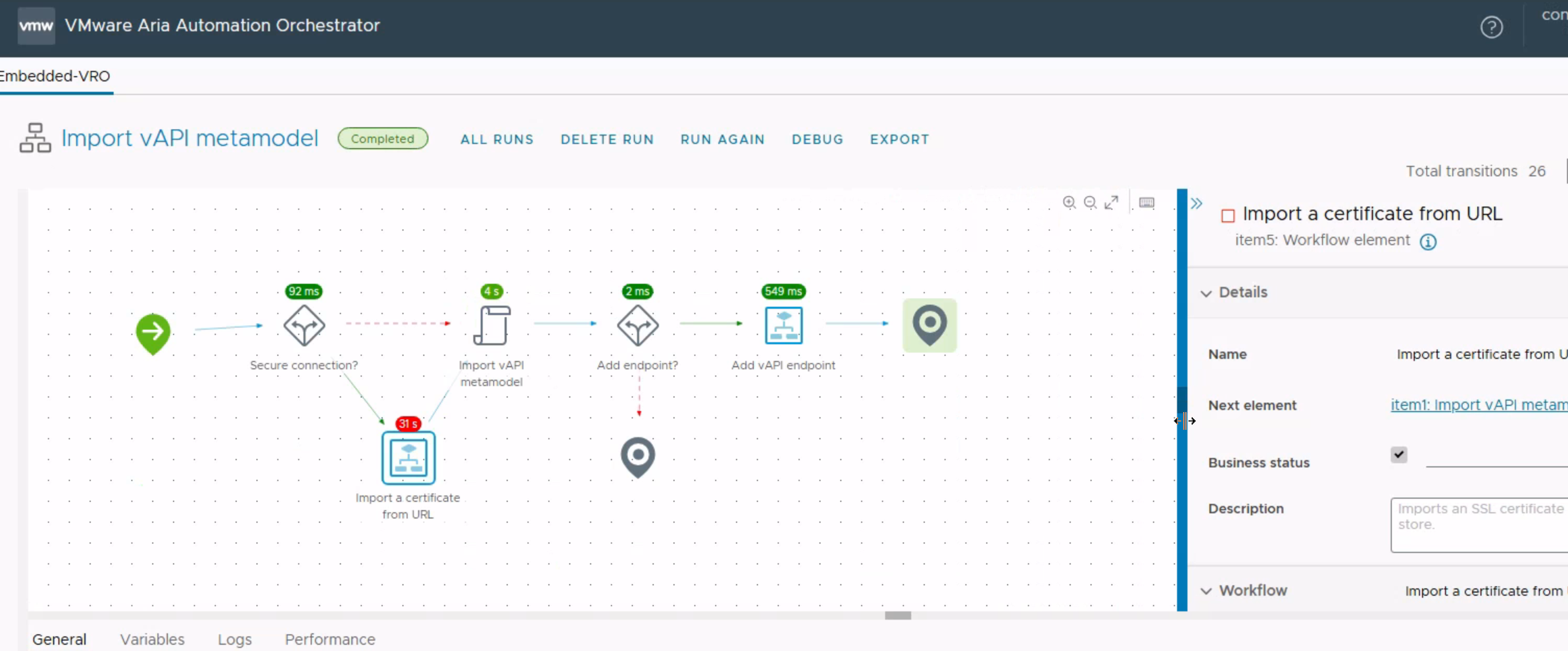
The workflow should finish with a green Completed status.
Next, search the workflows for Add a vCenter Server instance.
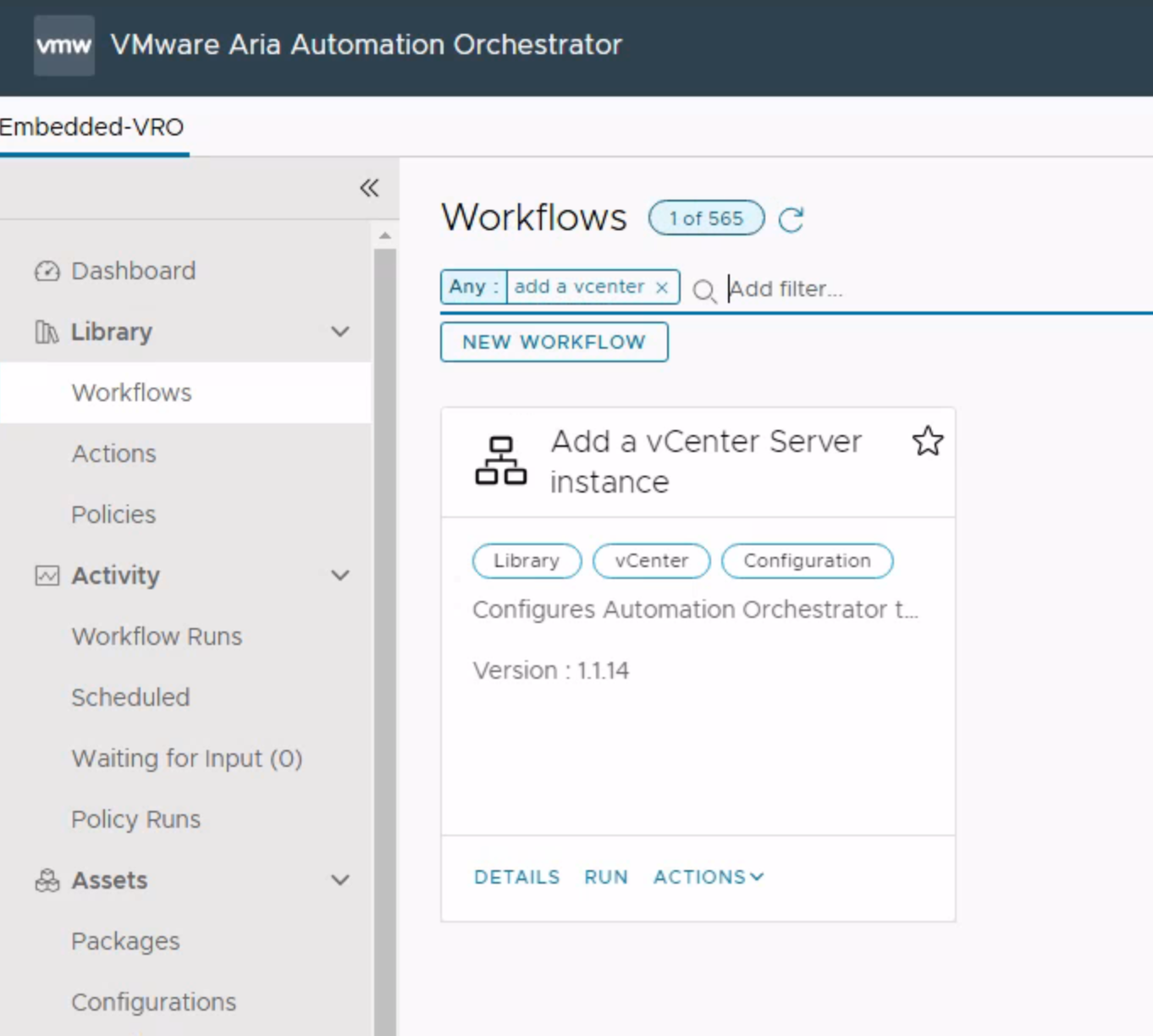
Run that workflow.
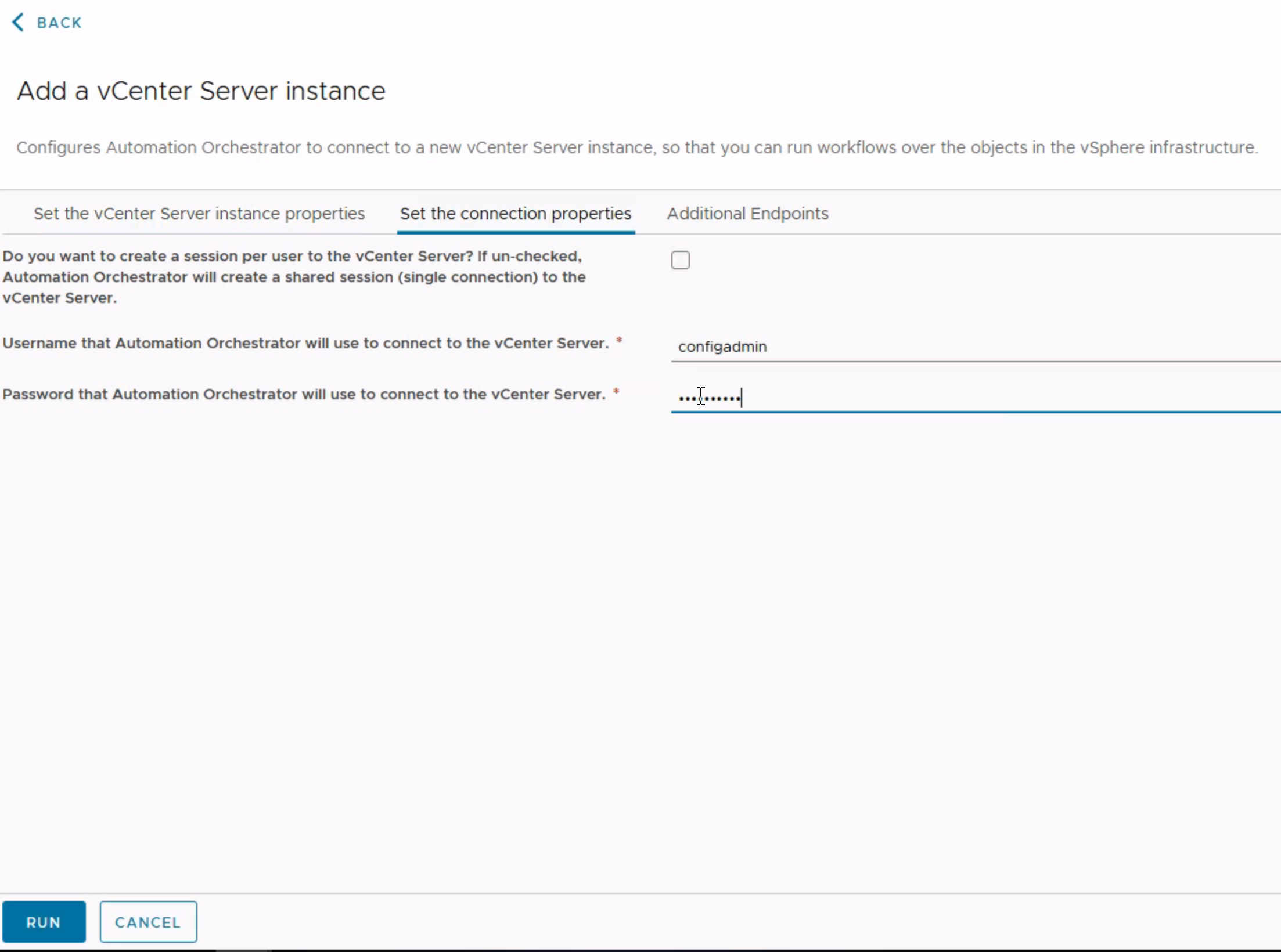
Enter the vCenter FQDN and credentials. To avoid Java runtime issues, do not select per user session.
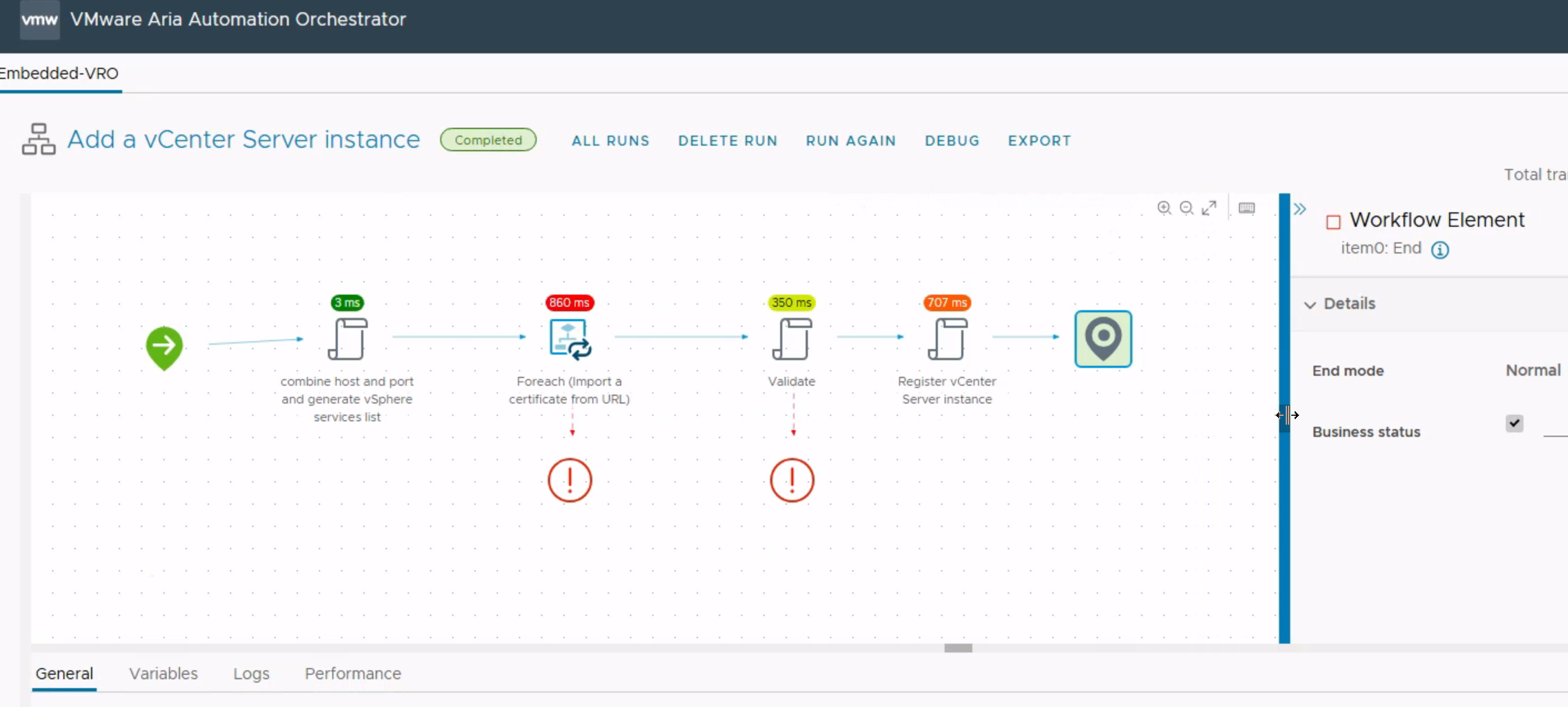
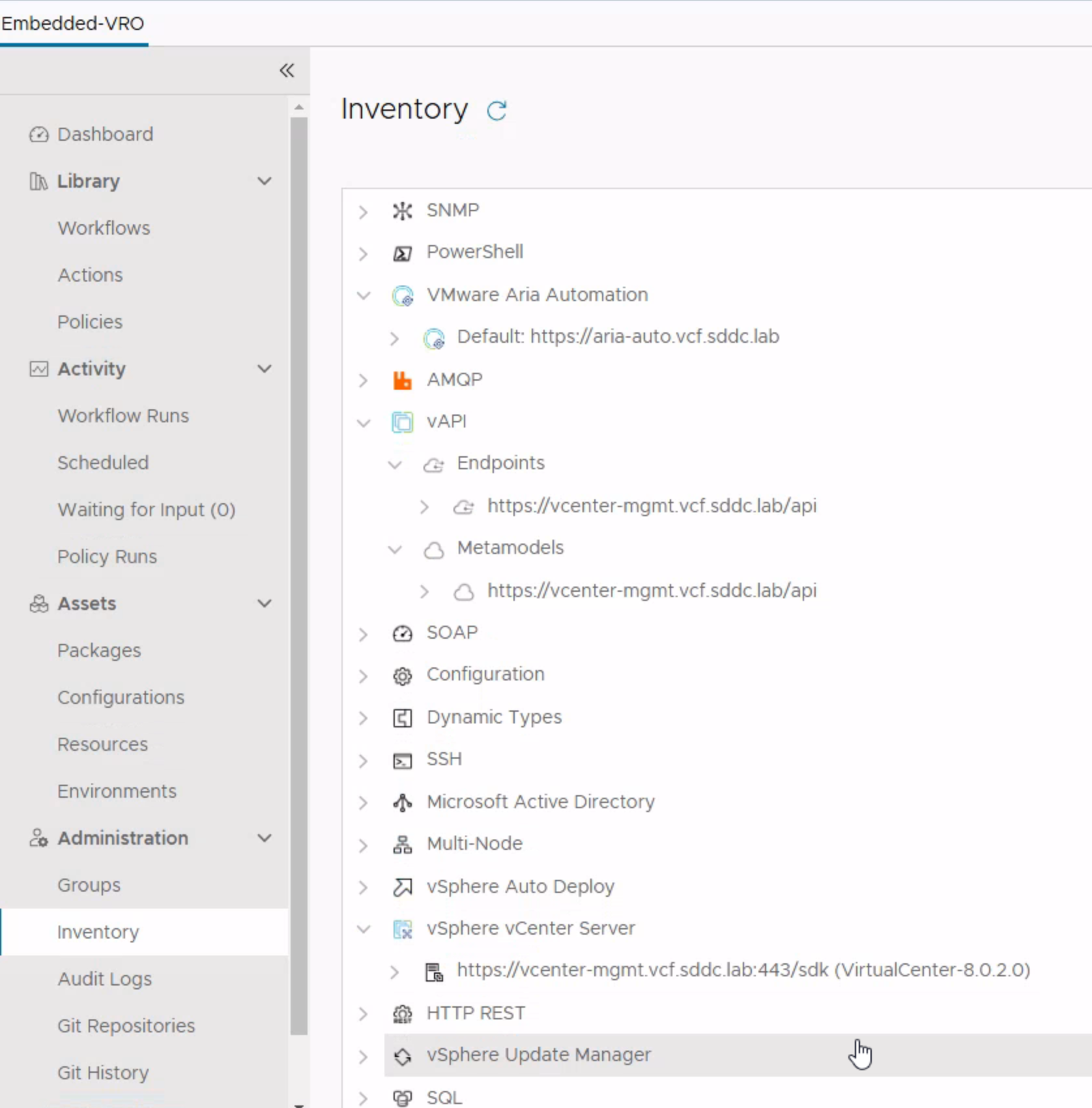
The integration is now ready for a workflow test through Service Broker.
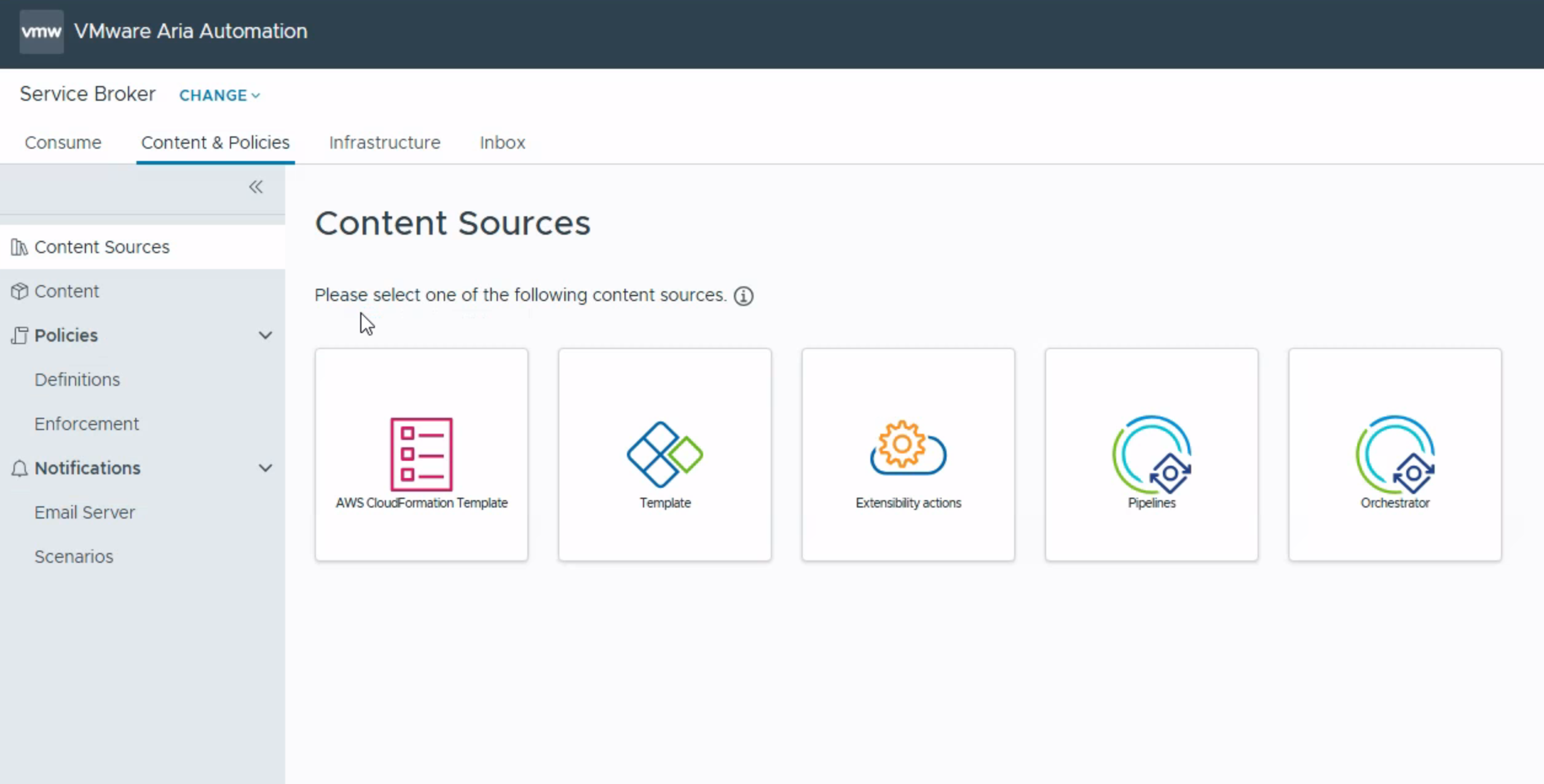
In Service Broker, open Content Sources, add a source, and choose Orchestrator.
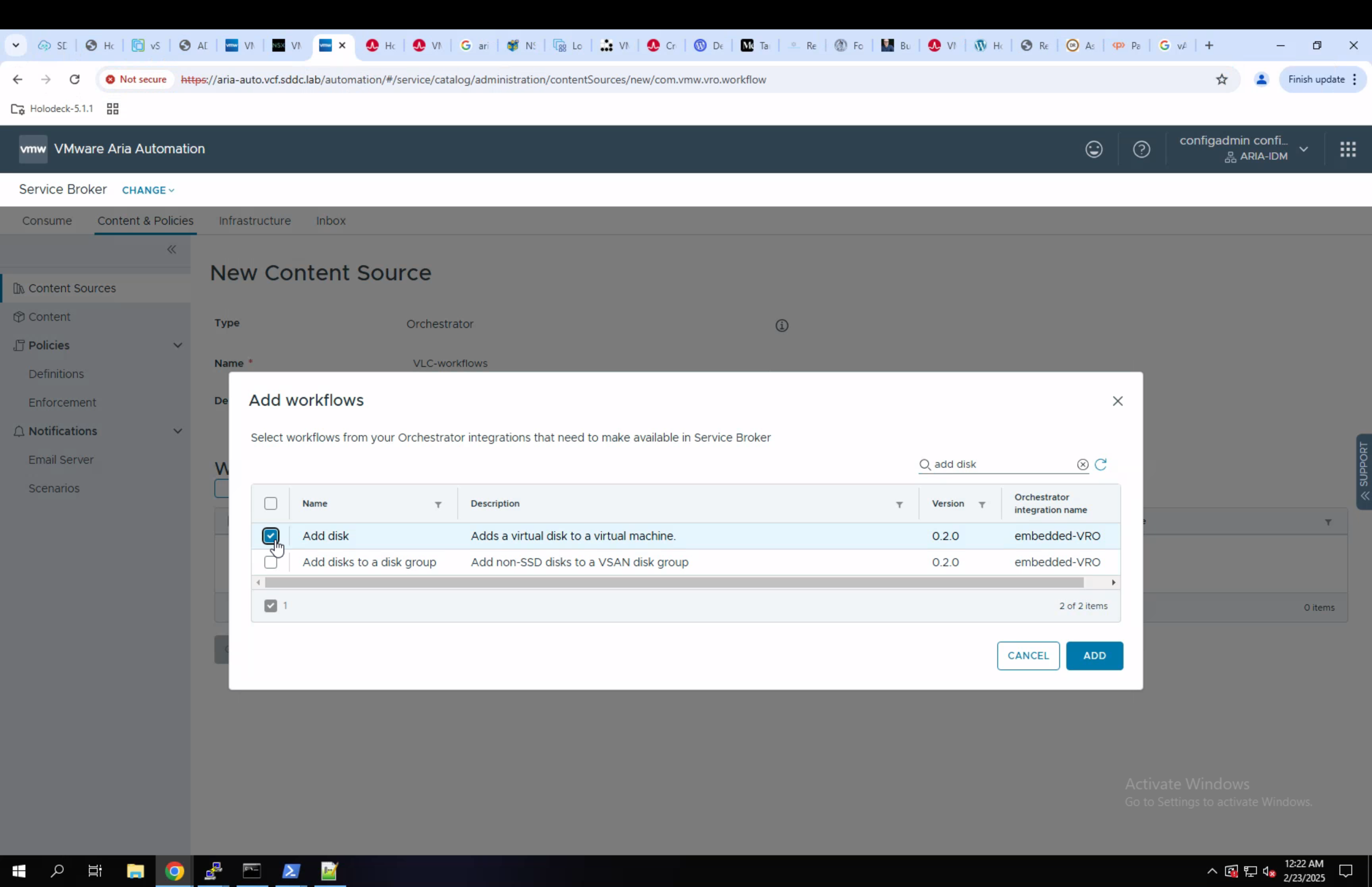
I give the content source a name and choose a workflow.
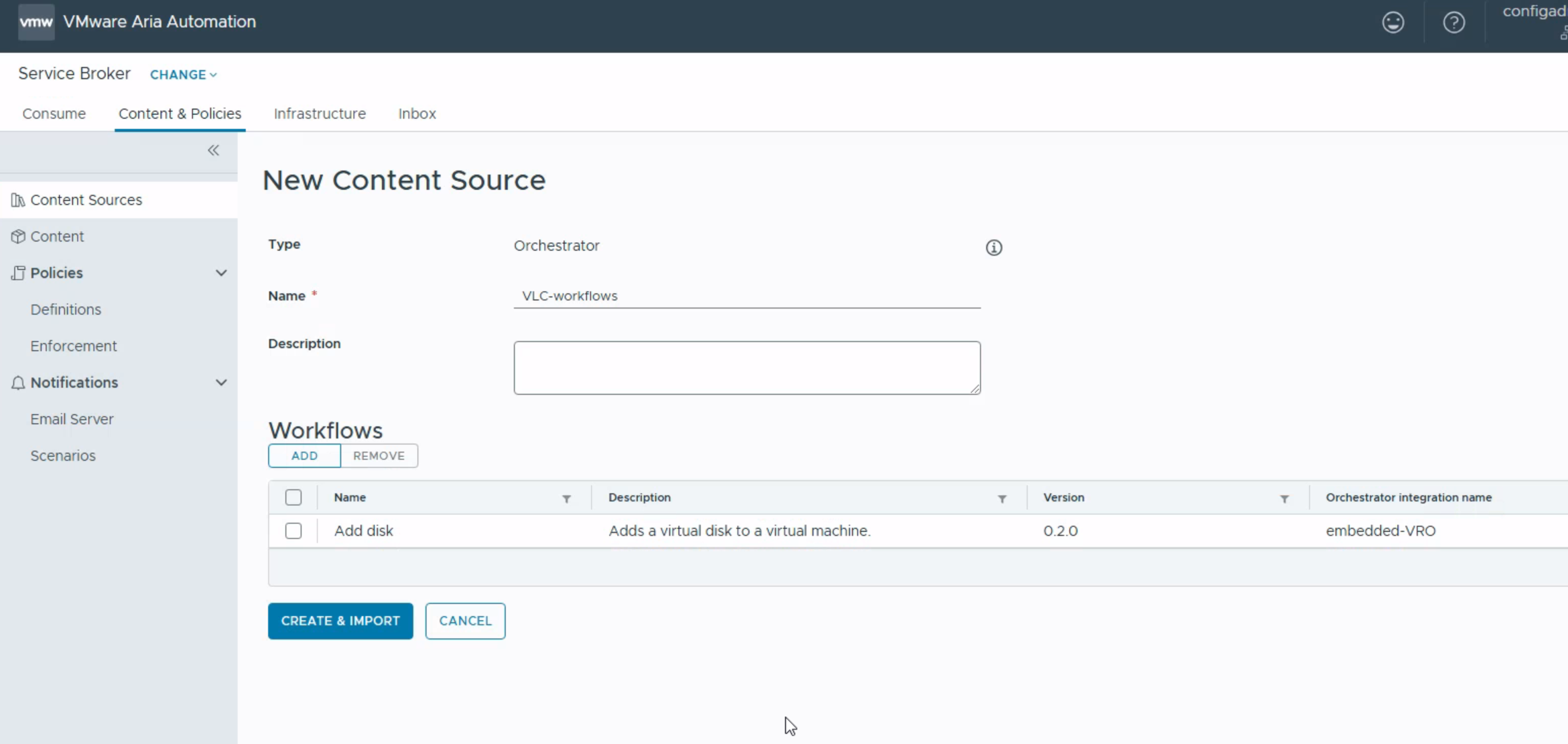
I select the Add disk workflow, then choose Create & Import.
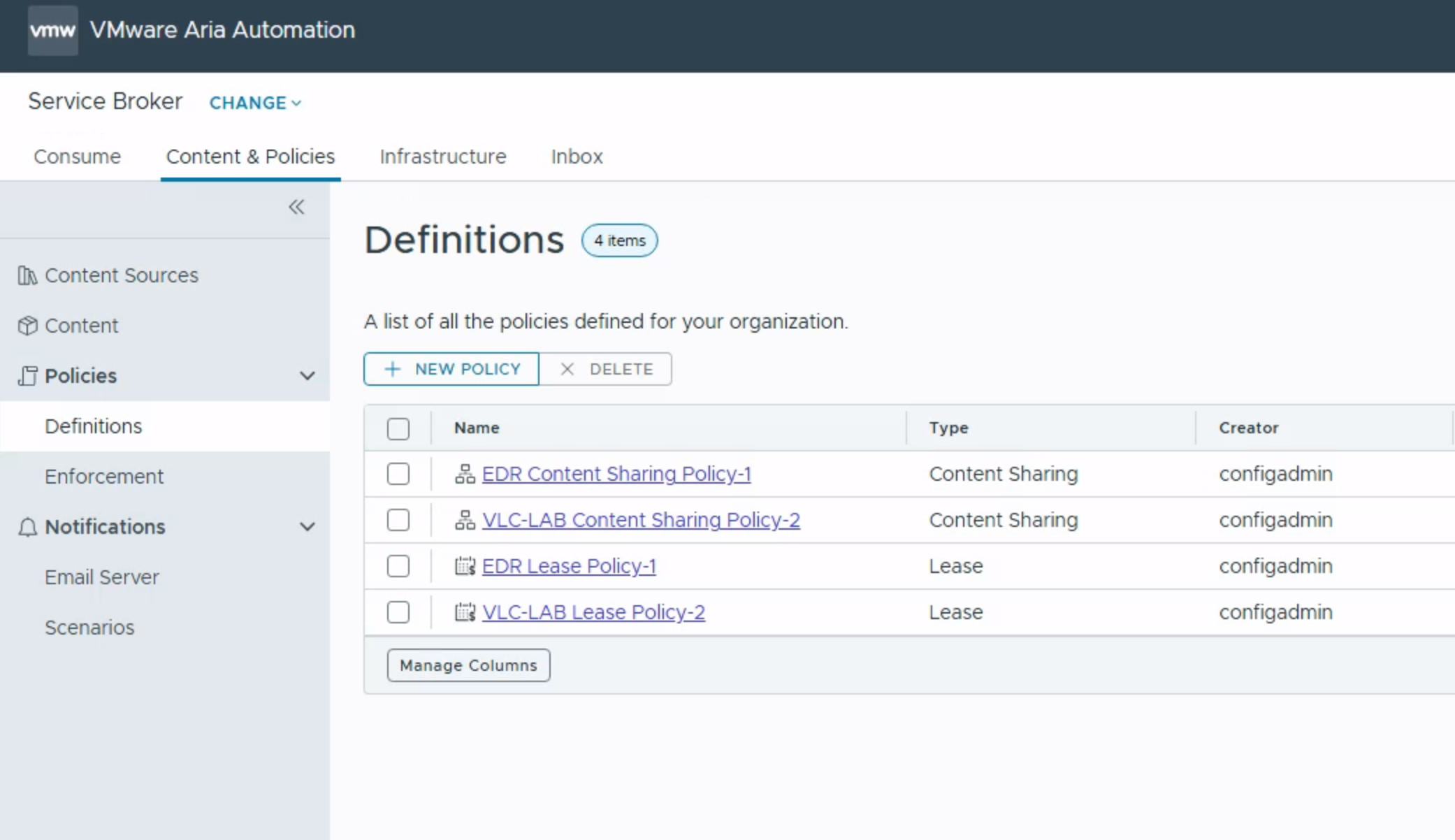
Next, add it to a content-sharing policy.
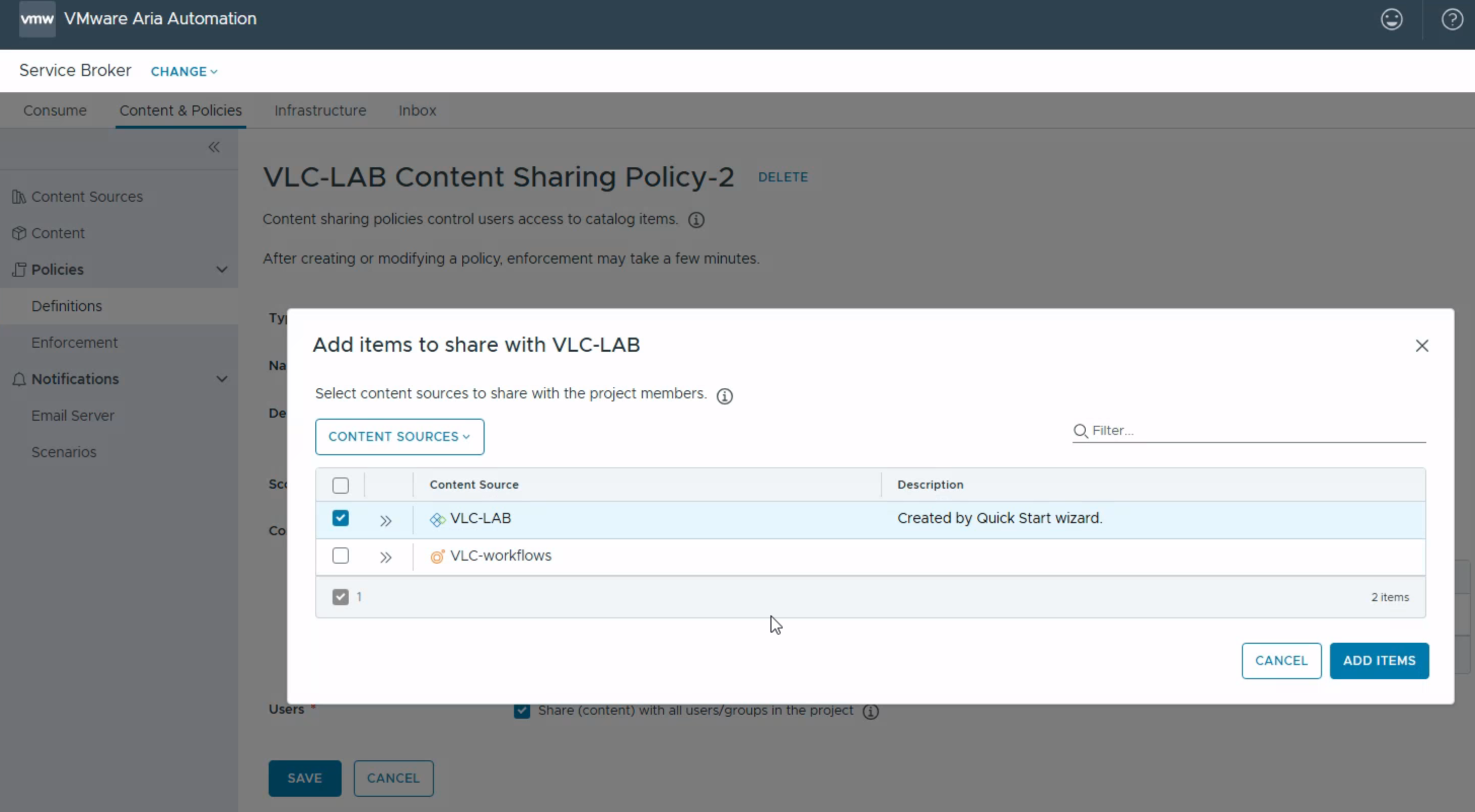
I open policy-2 and add vlc-workflows.
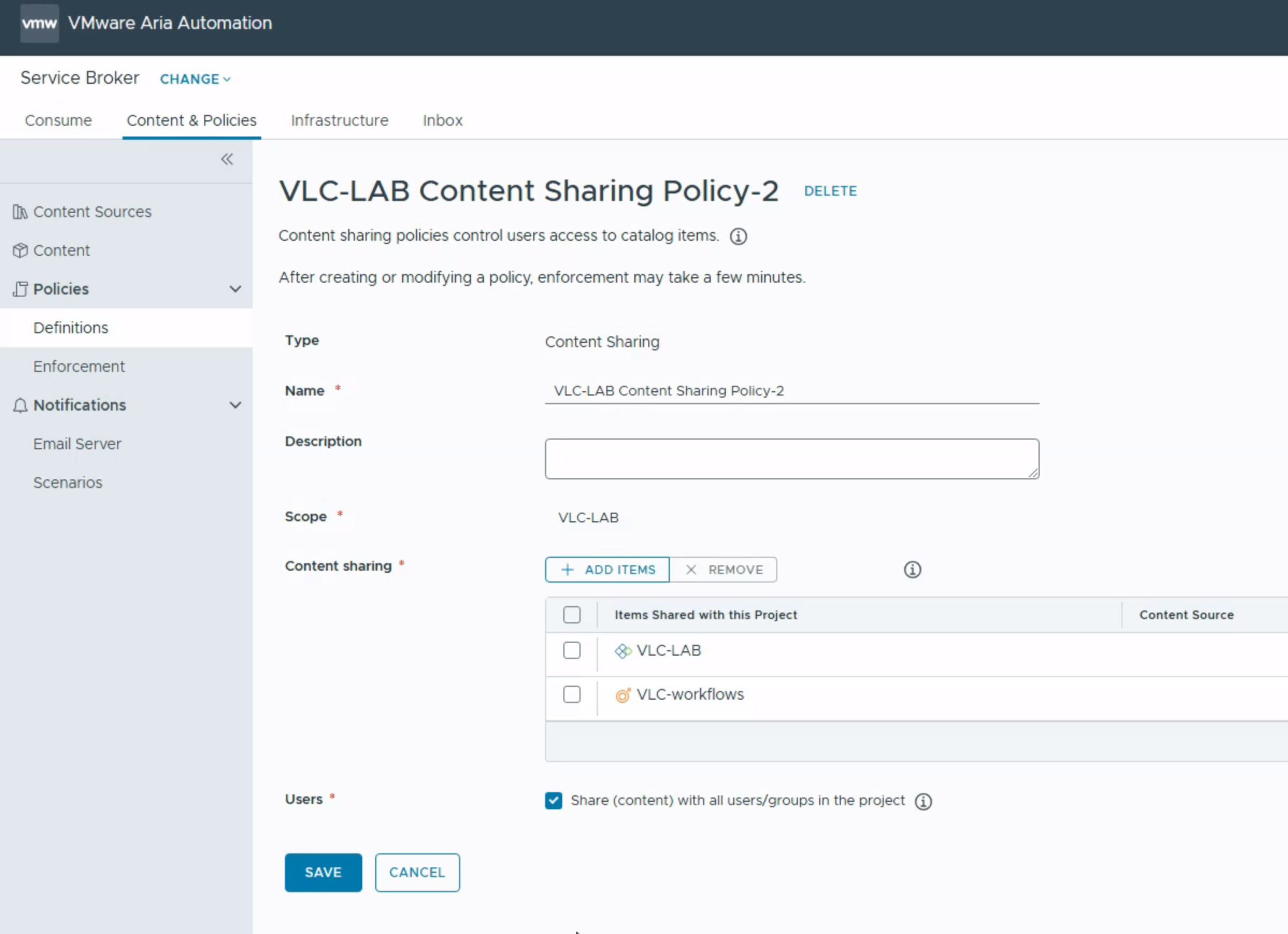
This means it will be shared along with my other content in my project.
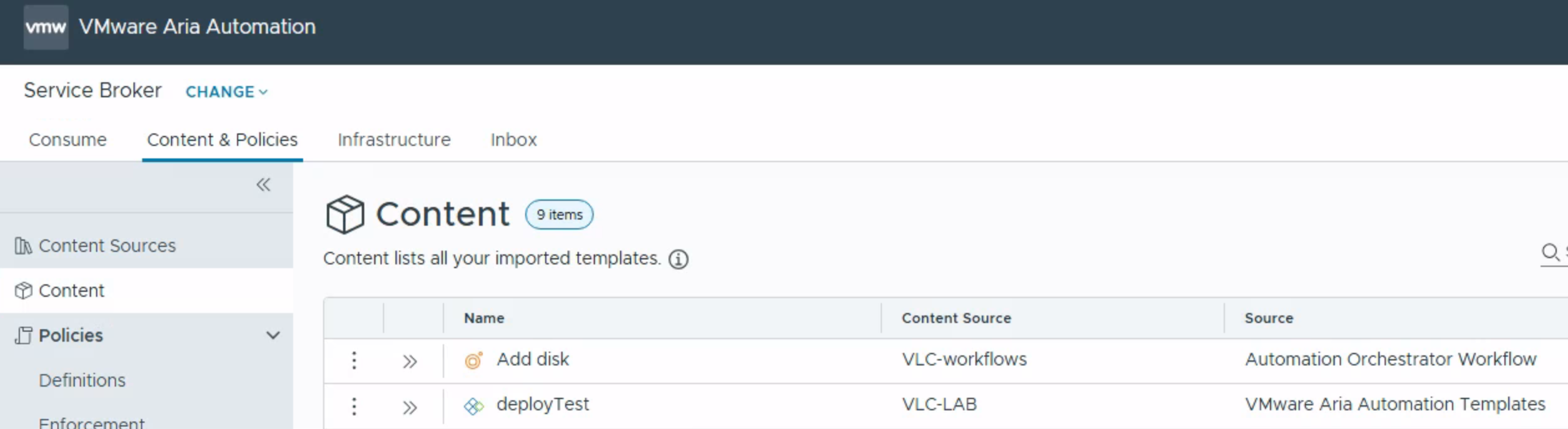
Looking at my content, “add disk” is now available.
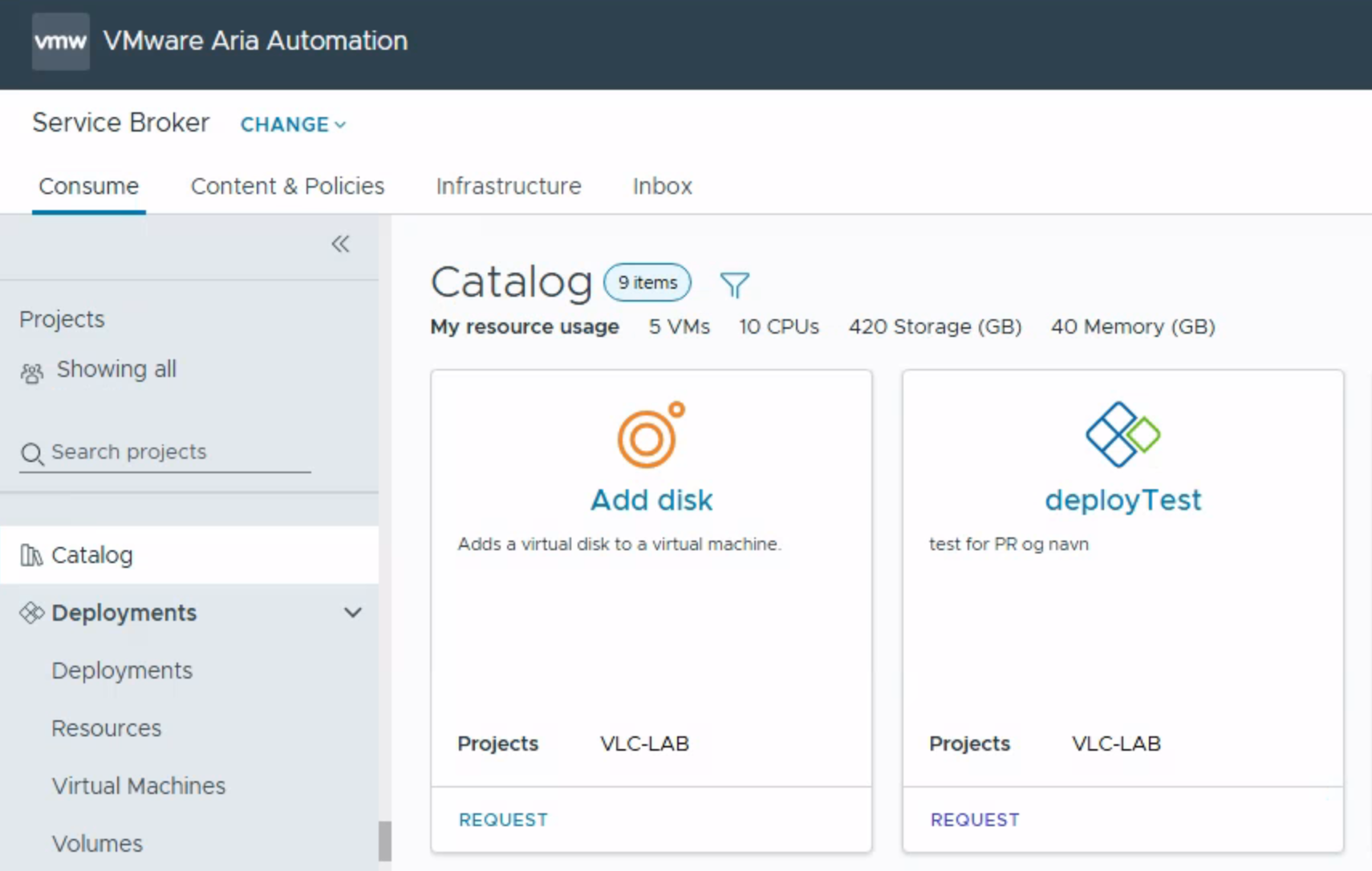
It is now available in my catalog, and we are ready to try:
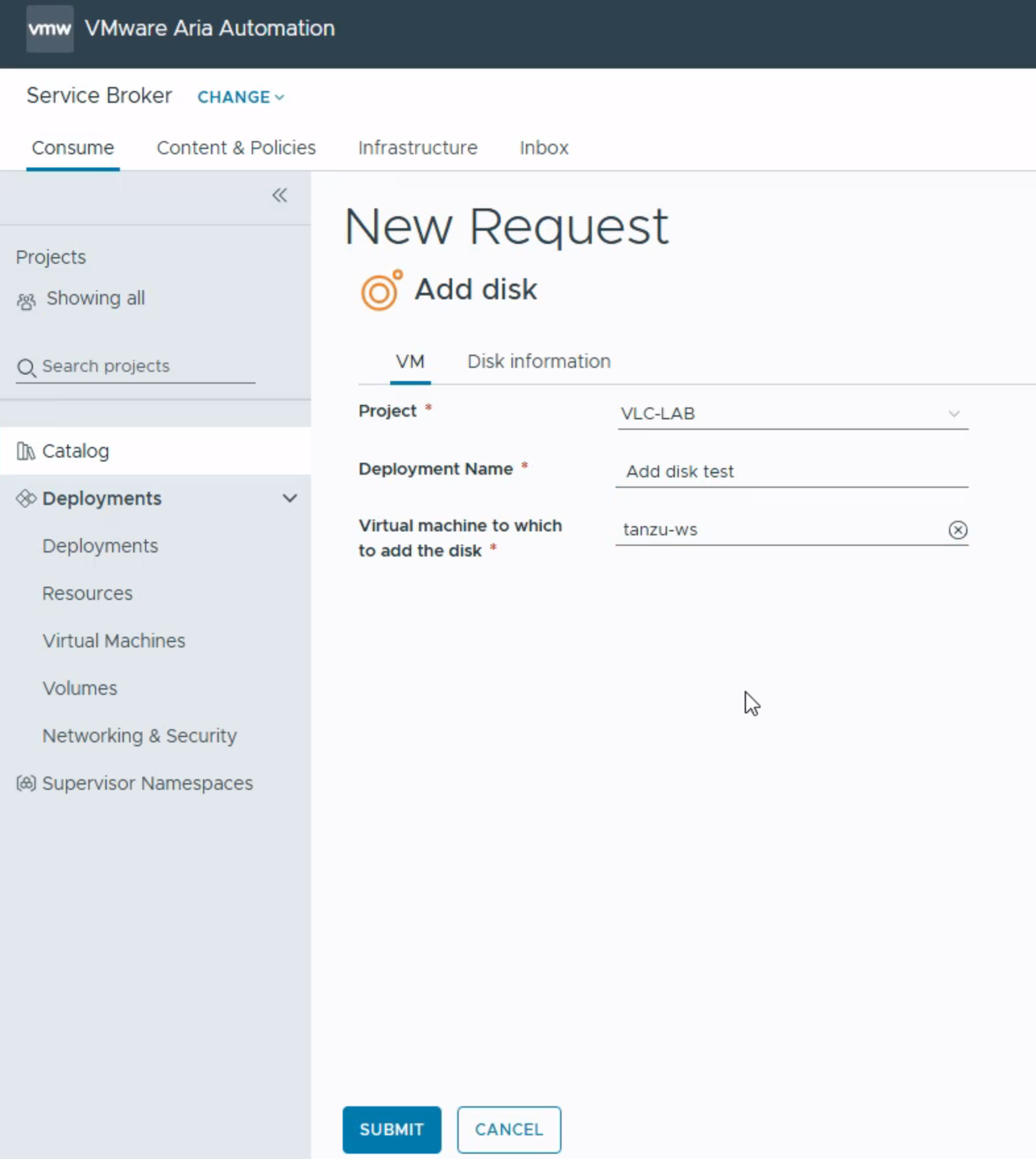
Choose a deployment name and search for the VM.
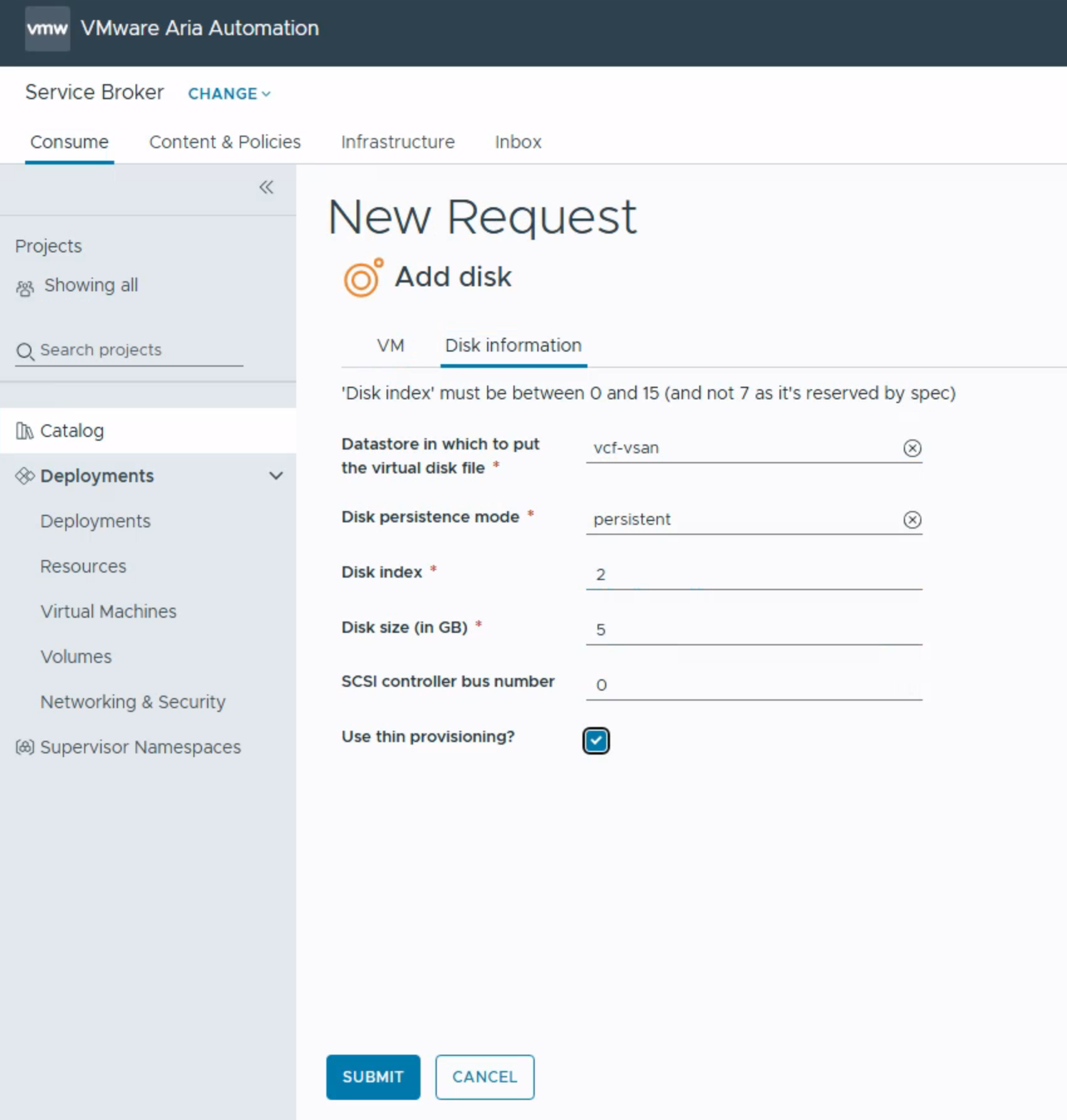
Select the datastore, disk mode, index, size, and bus number, then set the disk to thin provisioned.
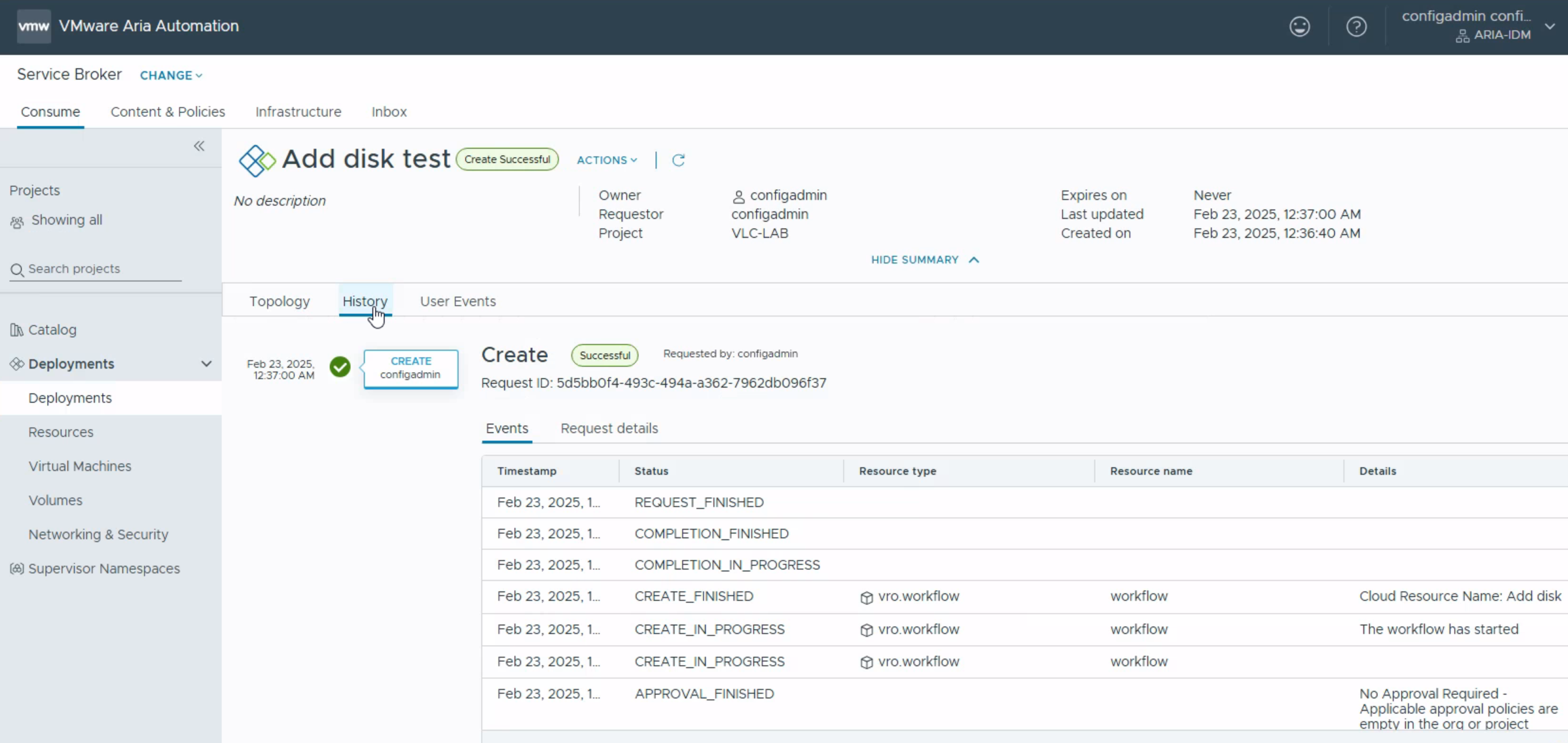
When the deployment completes, log in to the VM and partition the disk.
This is only one example. Orchestrator has around 600 preconfigured workflows, and you can also create your own.