As I found in parts 1 and 2, the YAML file was incomplete. I needed to change how I described the required output.
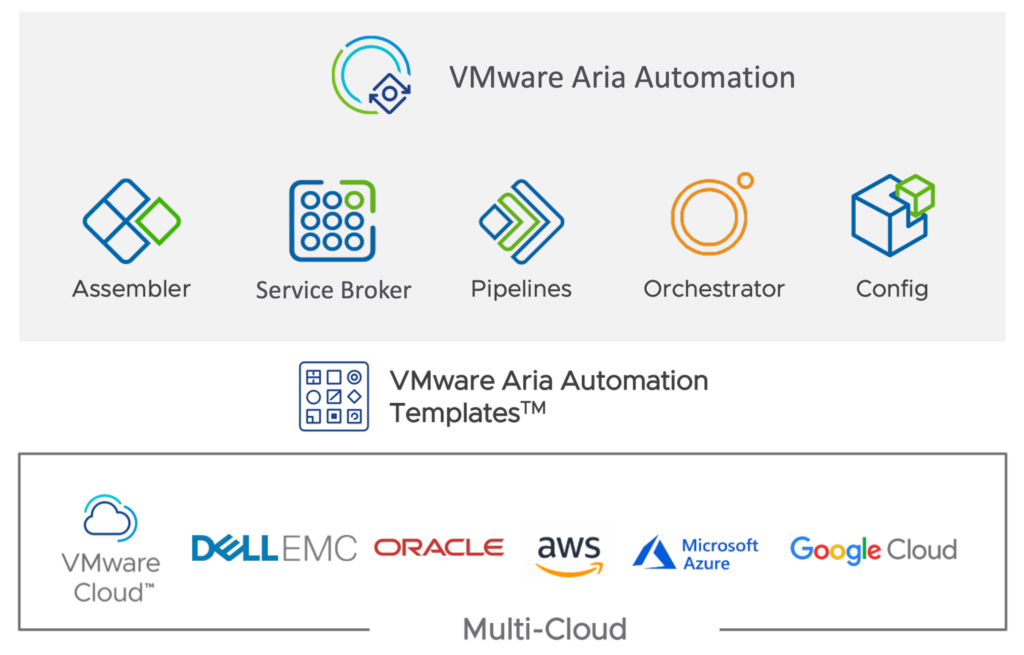
One thing was the many different templates you can create:
1. VMware Infrastructure
VMware vSphere: Direct support for deploying VMs and services on VMware’s core virtualization platform.
VMware Cloud on AWS: Integration with VMware’s cloud offering on Amazon Web Services for hybrid cloud operations.
VMware NSX: Support for advanced network configurations and services using VMware’s network virtualization and security platform.
Amazon Web Services (AWS): Deploys and manages AWS resources such as EC2 instances and S3 storage.
Microsoft Azure: Support for various Azure resources, including virtual machines, Azure SQL databases, and Azure Kubernetes Service.
Google Cloud Platform (GCP): Allows for the deployment and management of Google Cloud resources like Compute Engine instances and Google Kubernetes Engine.
Kubernetes: Native support for deploying and managing Kubernetes clusters and containerized applications across any infrastructure, including integrations with Tanzu Kubernetes Grid and other Kubernetes distributions.
OpenShift: Can integrate with Red Hat OpenShift for managing applications and services on this enterprise Kubernetes platform.
4. Private and Hybrid Clouds
VMware Cloud Foundation: Support for deploying on VMware’s integrated private cloud platform that includes vSphere, vSAN, and NSX.
VMware Cloud on Dell EMC: Allows businesses to manage and orchestrate environments running VMware’s cloud infrastructure on Dell EMC hardware.
5. Other Integrations
- VMware Cloud Director (formerly vCloud Director): Supports deployments in environments managed by VMware Cloud Director, which is targeted at service providers and large enterprises managing multiple cloud instances.
6. Traditional IT
- Bare Metal Servers: Capability to manage and provision bare metal servers directly, expanding automation beyond virtual and cloud resources.
7. Edge Environments
- VMware Edge Compute Stack: Supports the deployment and management of edge computing scenarios where processing is done at or near the source of data generation.
The list above shows that each blueprint has its own prerequisites and configuration parameters. A useful generated template therefore depends on a precise question.
I changed my approach and added more information to get a blueprint I could use in my vSphere environment.
My first YAML created a generic cloud machine, but I needed a Cloud.vSphere.Machine resource. I also specified the storage type and changed the operating system to win2022.
Me:
“Show me a aria automation cloud vsphere machine yaml file, for a windows 2022, with an existing c disk with 100gb. Storage type is cloud vsphere disk. disk number 2 is a DB disk with 300gb with letter E, disk number 3 is a log disk with 120gb with letter f and disk number 4 is a temp disk with 50gb with letter g.Disk provisioning type is thin. the vm uses NSX network called test2, and needs 2 cpu and 8gb ram”
ChatGPT:
Here’s a VMware Aria Automation Cloud template that matches your specifications for a Windows Server 2022 vSphere machine using vSAN storage with a thin provisioning type:
 1
 2
 3
 4
 5
 6
 7
 8
 9
10
11
12
13
14
15
16
17
18
19
20
21
22
23
24
25
26
27
28
29
30
31
32
33
34
35
36
37
38
39
40
41
42
43
44
45
46
47
48
49
50
51
52
53
54
55
56
57
58
59
60
61
62
63
64
65
66
67
68
| name: "Windows-Server-2022-VM-Detailed"
description: "Provision a Windows Server 2022 VM with integrated cloud vSphere disk configuration."
version: "1.0"
resources:
windowsVm:
type: Cloud.vSphere.Machine
properties:
name: "Win2022Server"
image: "Windows-2022"
flavor: "custom"
cpuCount: 2
totalMemoryMB: 8192
networks:
- networkType: "existing"
networkName: "test2"
storage:
type: "cloud.vsphere.disk"
datastore: "vsanDatastore"
disks:
- name: "C Disk"
type: "Cloud.vSphere.Disk"
capacityGB: 100
provisioningType: "thin"
bootDisk: true
- name: "DB Disk"
type: "Cloud.vSphere.Disk"
capacityGB: 300
deviceName: "E:"
provisioningType: "thin"
- name: "Log Disk"
type: "Cloud.vSphere.Disk"
capacityGB: 120
deviceName: "F:"
provisioningType: "thin"
- name: "Temp Disk"
type: "Cloud.vSphere.Disk"
capacityGB: 50
deviceName: "G:"
provisioningType: "thin"
customizationSpec:
customizationType: "windows"
timezone: "UTC"
adminUsername: "administrator"
adminPassword: "SecurePassword123!"
computerName: "Win2022Server"
preScript:
inline: |
# PowerShell script to initialize and format additional disks
Get-Disk | Where-Object PartitionStyle -eq 'RAW' |
Initialize-Disk -PartitionStyle MBR -PassThru |
ForEach-Object {
$disk = $_
switch ($disk.Number) {
1 {
New-Partition -DiskNumber $disk.Number -DriveLetter 'E' -UseMaximumSize |
Format-Volume -FileSystem NTFS -NewFileSystemLabel 'DBDisk' -Confirm:$false
}
2 {
New-Partition -DiskNumber $disk.Number -DriveLetter 'F' -UseMaximumSize |
Format-Volume -FileSystem NTFS -NewFileSystemLabel 'LogDisk' -Confirm:$false
}
3 {
New-Partition -DiskNumber $disk.Number -DriveLetter 'G' -UseMaximumSize |
Format-Volume -FileSystem NTFS -NewFileSystemLabel 'TempDisk' -Confirm:$false
}
}
}
|
The file was more complete, but it still lacked input parameters. These parameters define the form shown when someone requests a VM from the Aria portal. They can provide choices such as drop-down lists and fields for the disk size, name, and other values.
Next step would be to ask for input parameters.
Me:
“Show me a aria automation cloud vsphere machine yaml file, for a windows 2022, with an existing c disk with 100gb. Storage type is cloud vsphere disk. disk number 2 is a DB disk with 300gb with letter E, disk number 3 is a log disk with 120gb with letter f and disk number 4 is a temp disk with 50gb with letter g.Disk provisioning type is thin. the vm uses NSX network called test2, and needs 2 cpu and 8gb ram , with template input parameters”
ChatGPT:
Here’s a VMware Aria Automation Cloud template for a vSphere machine with template inputs as requested:
  1
  2
  3
  4
  5
  6
  7
  8
  9
 10
 11
 12
 13
 14
 15
 16
 17
 18
 19
 20
 21
 22
 23
 24
 25
 26
 27
 28
 29
 30
 31
 32
 33
 34
 35
 36
 37
 38
 39
 40
 41
 42
 43
 44
 45
 46
 47
 48
 49
 50
 51
 52
 53
 54
 55
 56
 57
 58
 59
 60
 61
 62
 63
 64
 65
 66
 67
 68
 69
 70
 71
 72
 73
 74
 75
 76
 77
 78
 79
 80
 81
 82
 83
 84
 85
 86
 87
 88
 89
 90
 91
 92
 93
 94
 95
 96
 97
 98
 99
100
101
102
103
104
105
106
107
108
109
110
111
112
113
114
115
116
117
118
119
120
121
122
123
| name: "Deploy-Windows-2022-VM"
description: "Template to deploy a Windows Server 2022 VM with custom disk configuration and NSX networking."
version: "1.0"
inputs:
vmName:
type: string
title: "Virtual Machine Name"
description: "Name of the virtual machine to be deployed."
default: "Win2022VM"
cpuCount:
type: integer
title: "CPU Count"
description: "Number of CPUs for the virtual machine."
default: 2
memoryMB:
type: integer
title: "Memory in MB"
description: "Amount of RAM in megabytes for the virtual machine."
default: 8192
networkName:
type: string
title: "NSX Network Name"
description: "Name of the NSX network the VM will connect to."
default: "test2"
adminUsername:
type: string
title: "Administrator Username"
description: "Administrator username for the VM."
default: "admin"
adminPassword:
type: string
title: "Administrator Password"
description: "Administrator password for the VM."
encrypted: true
dbDiskSizeGB:
type: integer
title: "DB Disk Size in GB"
description: "Size of the database disk in gigabytes."
default: 300
logDiskSizeGB:
type: integer
title: "Log Disk Size in GB"
description: "Size of the log disk in gigabytes."
default: 120
tempDiskSizeGB:
type: integer
title: "Temporary Disk Size in GB"
description: "Size of the temporary disk in gigabytes."
default: 50
resources:
windowsVm:
type: Cloud.vSphere.Machine
properties:
name: "${input.vmName}"
image: "Windows-2022"
flavor: "custom"
cpuCount: "${input.cpuCount}"
totalMemoryMB: "${input.memoryMB}"
networks:
- networkType: "existing"
networkName: "${input.networkName}"
storage:
type: "vsan"
datastore: "vsanDatastore"
disks:
- name: "C Disk"
type: "Cloud.vSphere.Disk"
capacityGB: 100
provisioningType: "thin"
bootDisk: true
- name: "DB Disk"
type: "Cloud.vSphere.Disk"
capacityGB: "${input.dbDiskSizeGB}"
deviceName: "E:"
provisioningType: "thin"
- name: "Log Disk"
type: "Cloud.vSphere.Disk"
capacityGB: "${input.logDiskSizeGB}"
deviceName: "F:"
provisioningType: "thin"
- name: "Temp Disk"
type: "Cloud.vSphere.Disk"
capacityGB: "${input.tempDiskSizeGB}"
deviceName: "G:"
provisioningType: "thin"
customizationSpec:
customizationType: "windows"
timezone: "UTC"
adminUsername: "${input.adminUsername}"
adminPassword: "${input.adminPassword}"
computerName: "${input.vmName}"
preScript:
inline: |
# PowerShell script to initialize and format additional disks
Get-Disk | Where-Object PartitionStyle -eq 'RAW' |
Initialize-Disk -PartitionStyle MBR -PassThru |
ForEach-Object {
$disk = $_
switch ($disk.Number) {
1 {
New-Partition -DiskNumber $disk.Number -DriveLetter 'E' -UseMaximumSize |
Format-Volume -FileSystem NTFS -NewFileSystemLabel 'DBDisk' -Confirm:$false
}
2 {
New-Partition -DiskNumber $disk.Number -DriveLetter 'F' -UseMaximumSize |
Format-Volume -FileSystem NTFS -NewFileSystemLabel 'LogDisk' -Confirm:$false
}
3 {
New-Partition -DiskNumber $disk.Number -DriveLetter 'G' -UseMaximumSize |
Format-Volume -FileSystem NTFS -NewFileSystemLabel 'TempDisk' -Confirm:$false
}
}
}
|
The YAML file is becoming more complex, but also more complete. The disk configuration still needed adjustment, so I created a template manually in Aria for comparison: a Cloud.vSphere.Machine VM with 3 disks and an NSX network.
After comparing the YAML files, I merged the manual template with the latest ChatGPT template. This produced the most functional blueprint in my test. It still has duplicate parameters to clean up, and I need to test the schema inputs before calling it 100% complete.